How to use the app
Short steps with a photo of every button. Pick your app, then follow the numbers.
Your first day
Thirteen short steps, from opening the app to sending the owner one page. Try them on the sample job first.
-
1
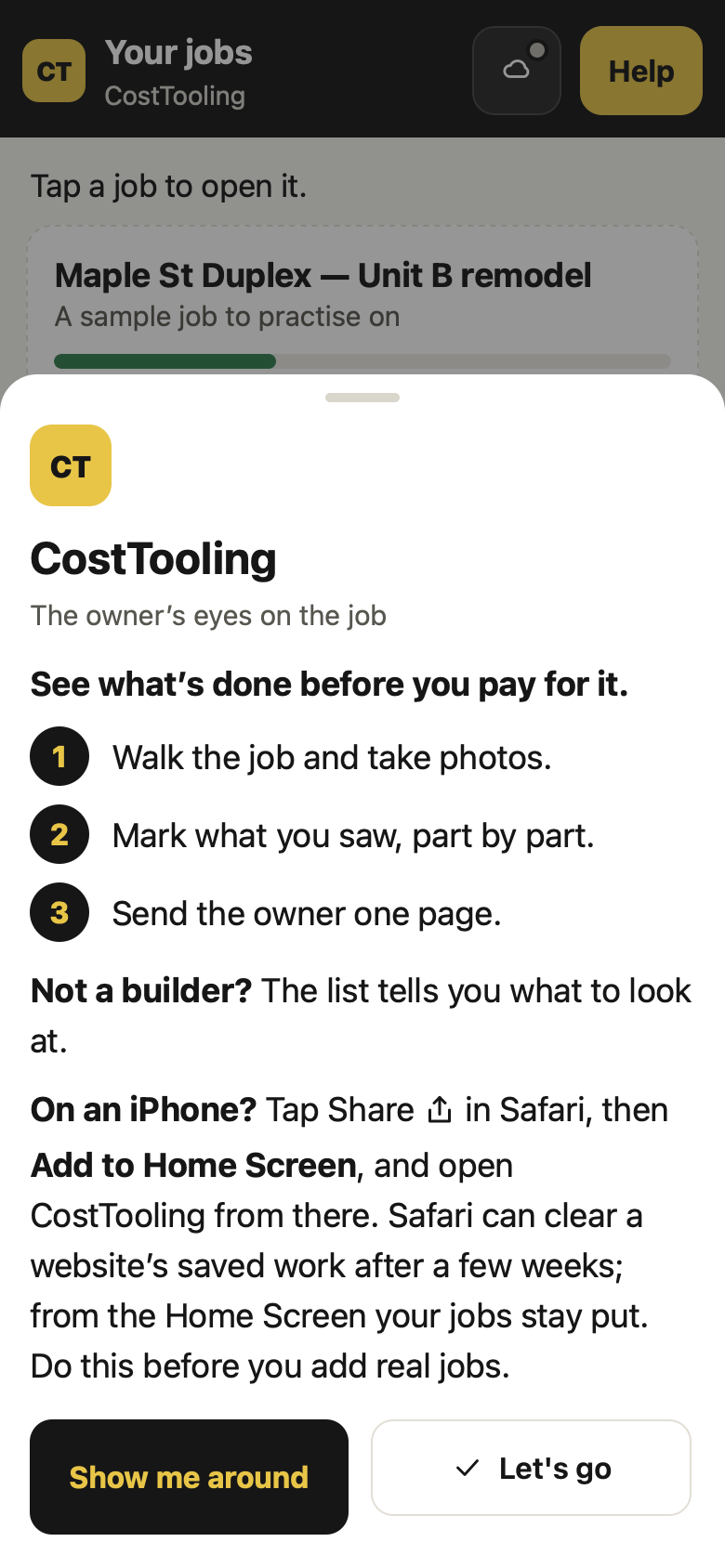
Open costtooling.com on your phone. Tap Open the app. Then tap Let's go.
Look for this 
Not sure where things are? Tap Show me around instead. The app walks you through every screen on the sample job.
On an iPhone, the card also shows how to put the app on your home screen. Do that first.
-
2
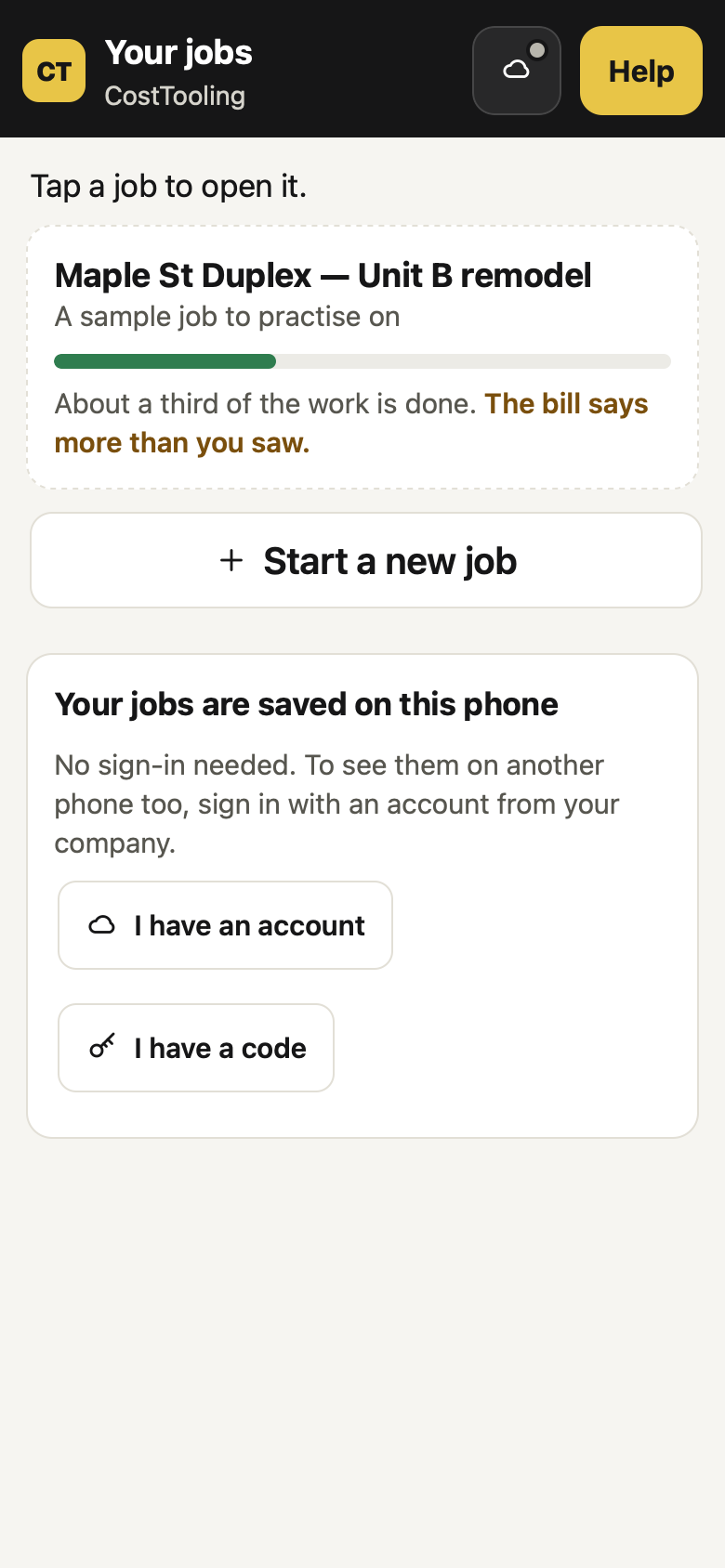
Tap the job to open it. There is a sample job to practise on.
Look for this 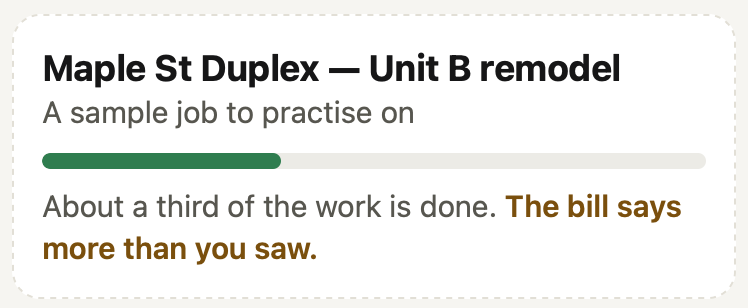
Stuck on any screen? Tap the yellow Help button at the top. Then tap How do I… to come back to this page.
-
3
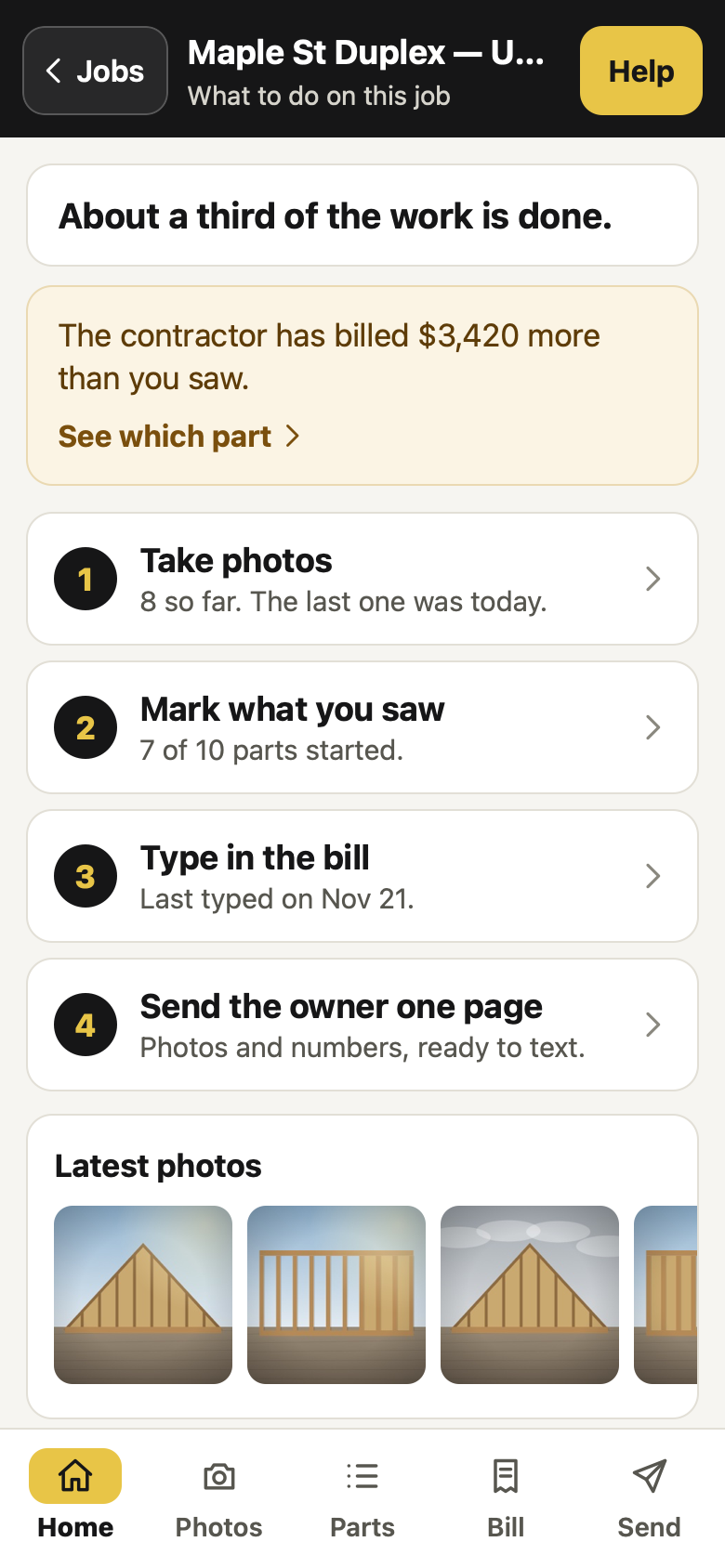
The job opens on four steps. Do them in order each time you visit the job. Tap Take photos.
Look for this 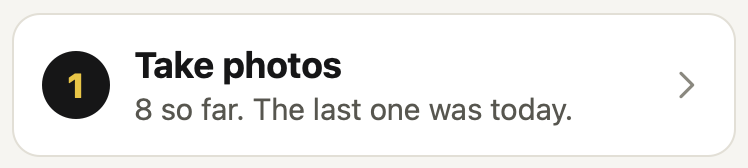
-
4
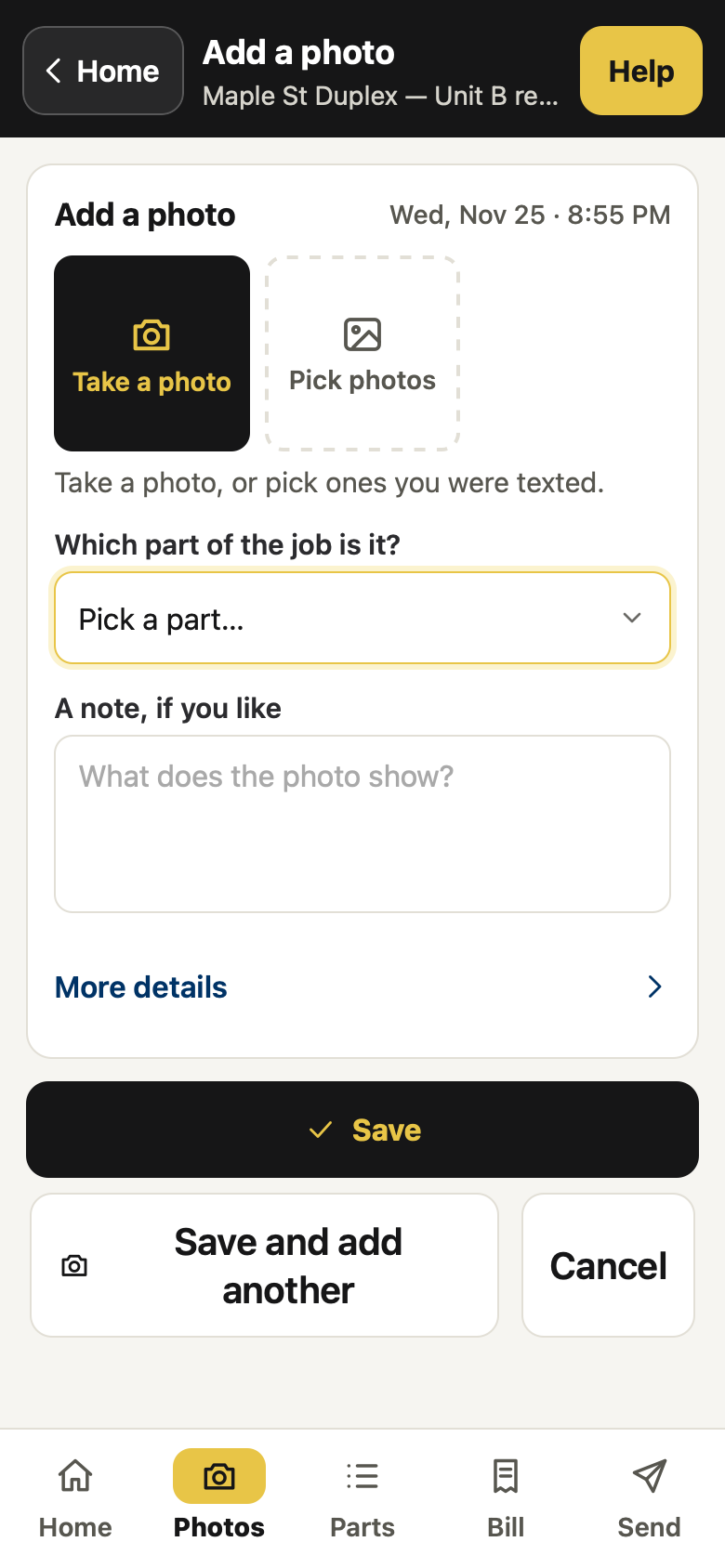
Tap Take a photo and take the picture. Or tap Pick photos to use ones you were texted.
Look for this 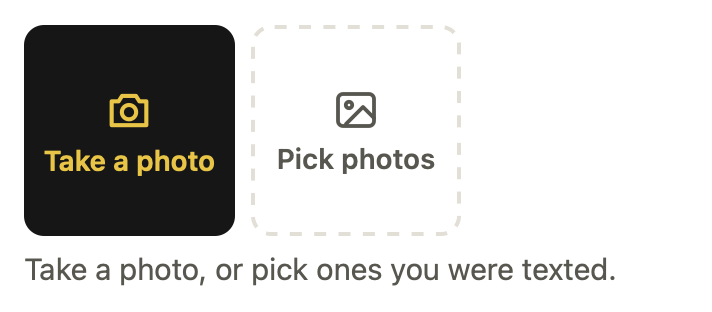
-
5
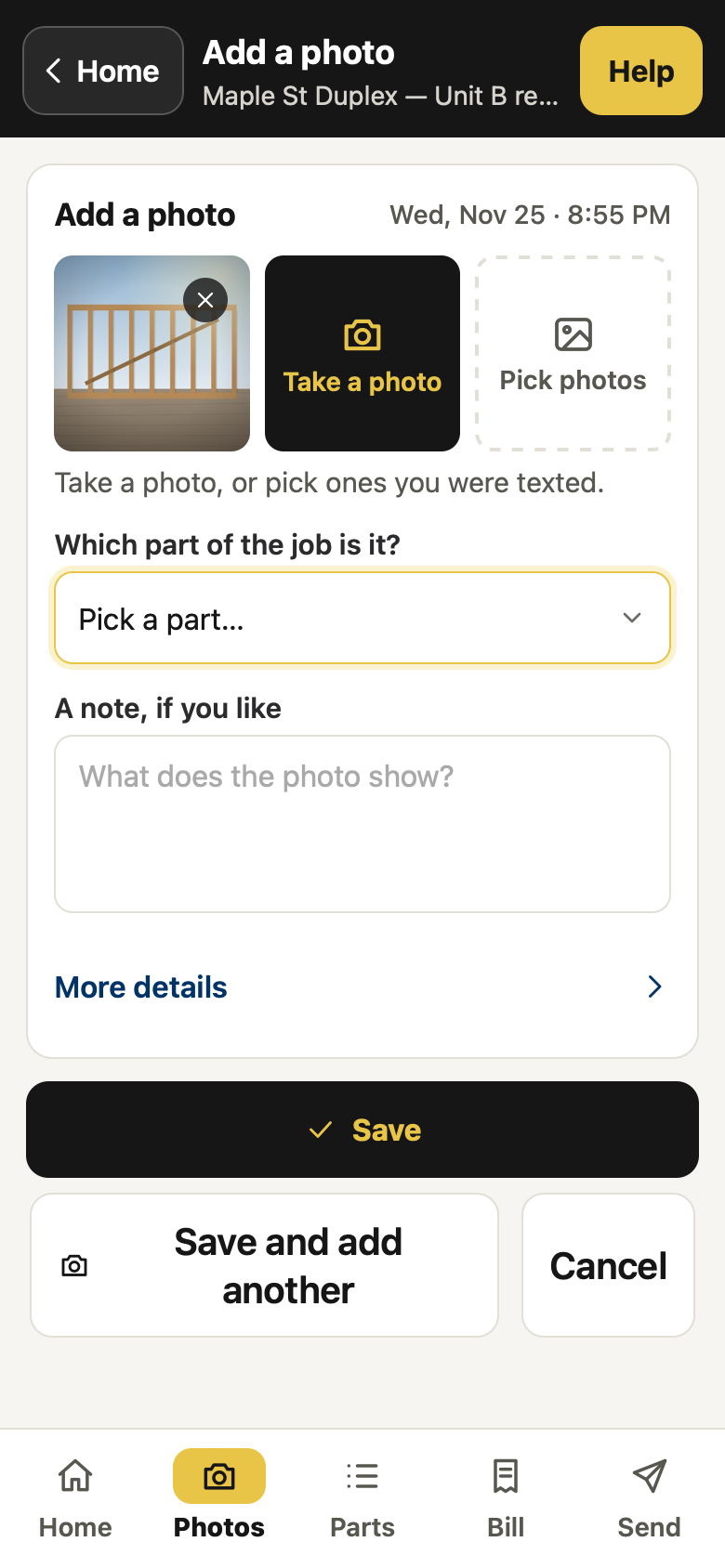
Under Which part of the job is it? tap Pick a part… Then pick the part the photo shows.
Look for this 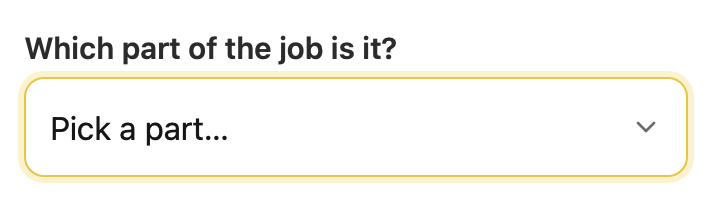
A part is one piece of the work, like Framing or Roofing.
-
6
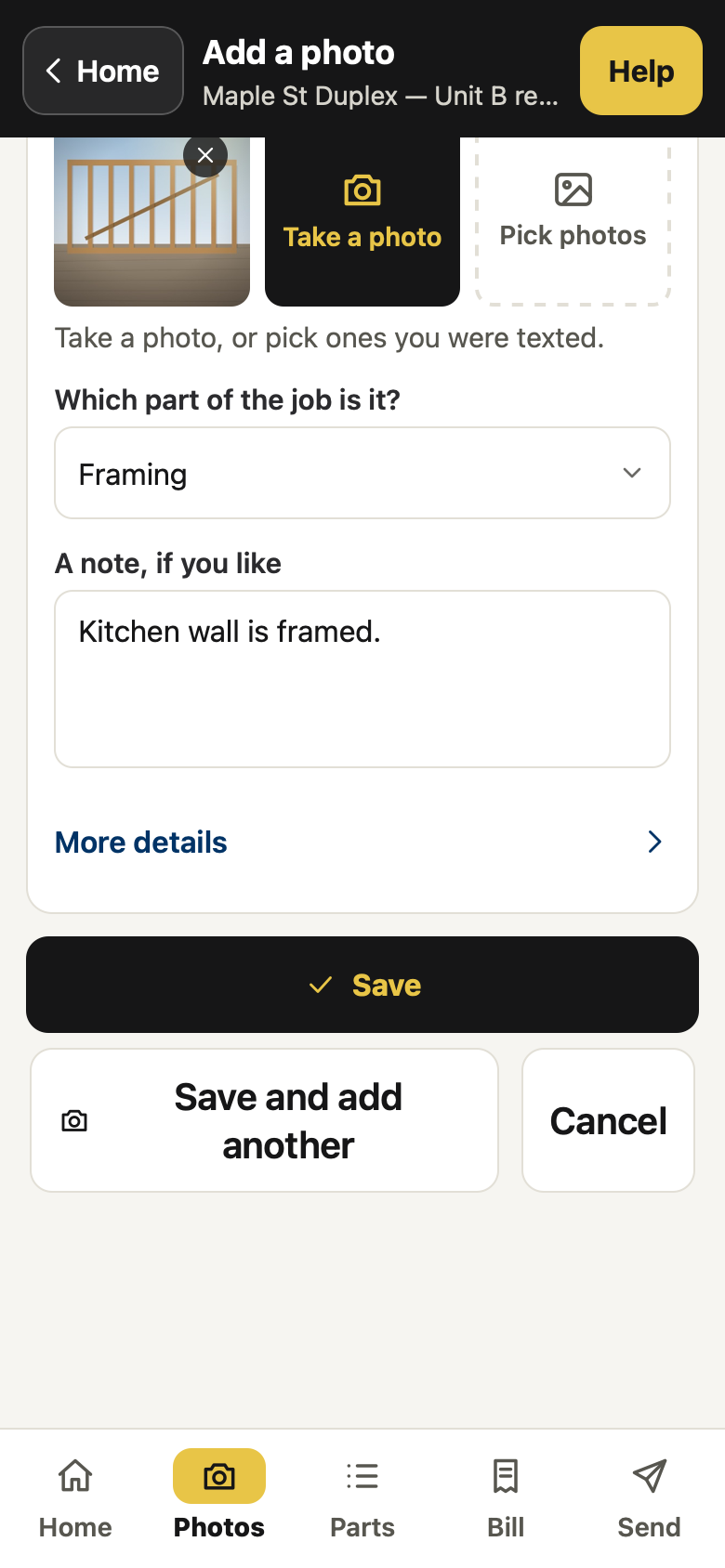
Write a note if you like. Tap Save.
Look for this 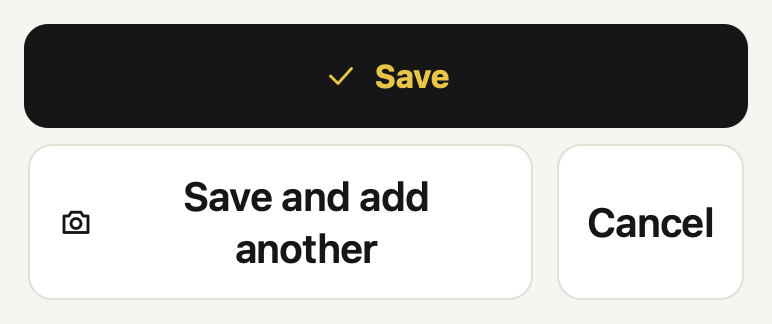
The app opens that part and shows your photo under it.
More details holds the weather, the people on site and the date. You can skip it.
-
7
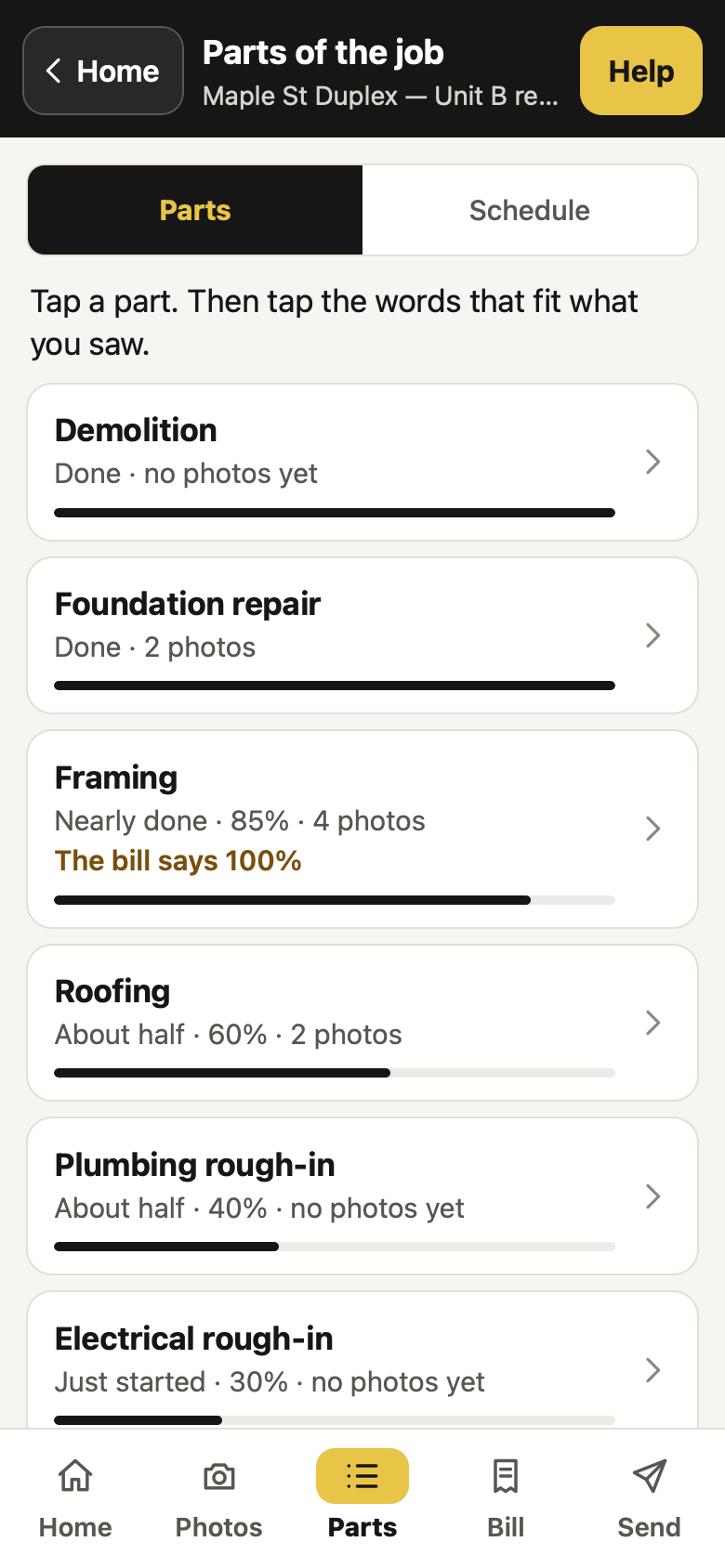
Tap Parts at the bottom. Tap a part.
Look for this 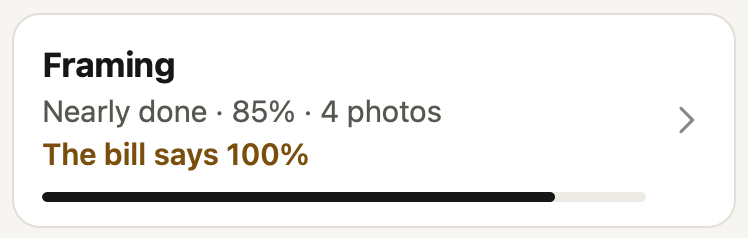
Each part shows how far along it is and how many photos it has.
-
8
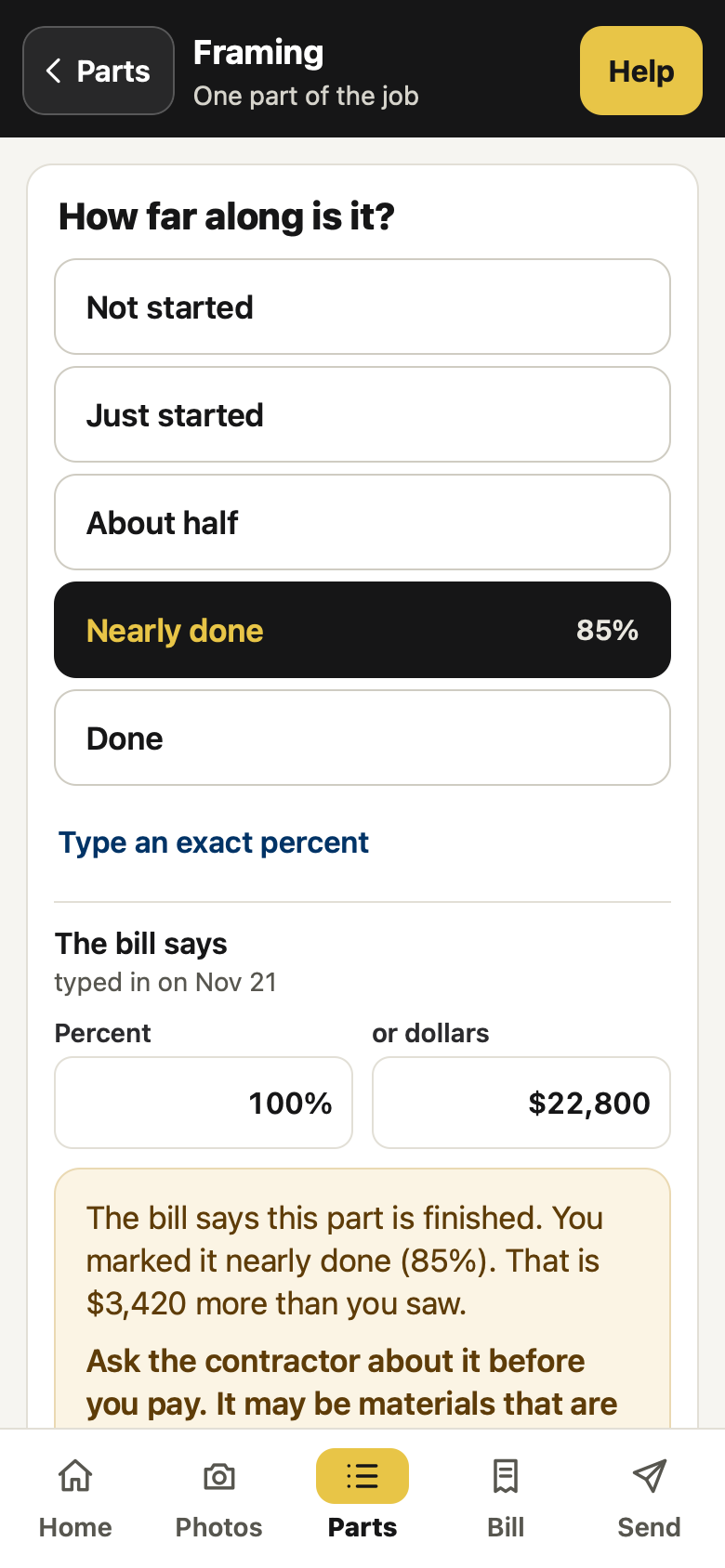
Tap the words that fit what you saw: Not started, Just started, About half, Nearly done or Done.
Look for this 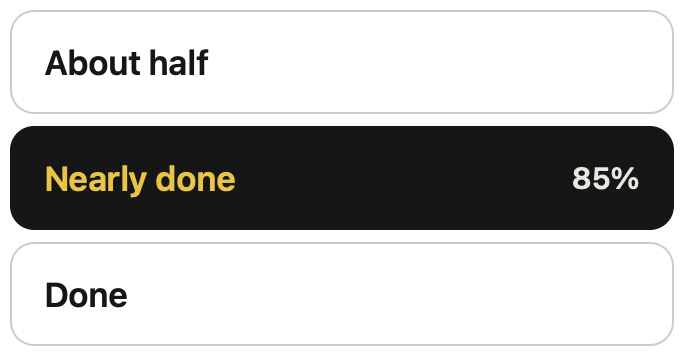
It saves as soon as you tap. Changed your mind? Tap other words.
Want a number? Tap Type an exact percent.
-
9
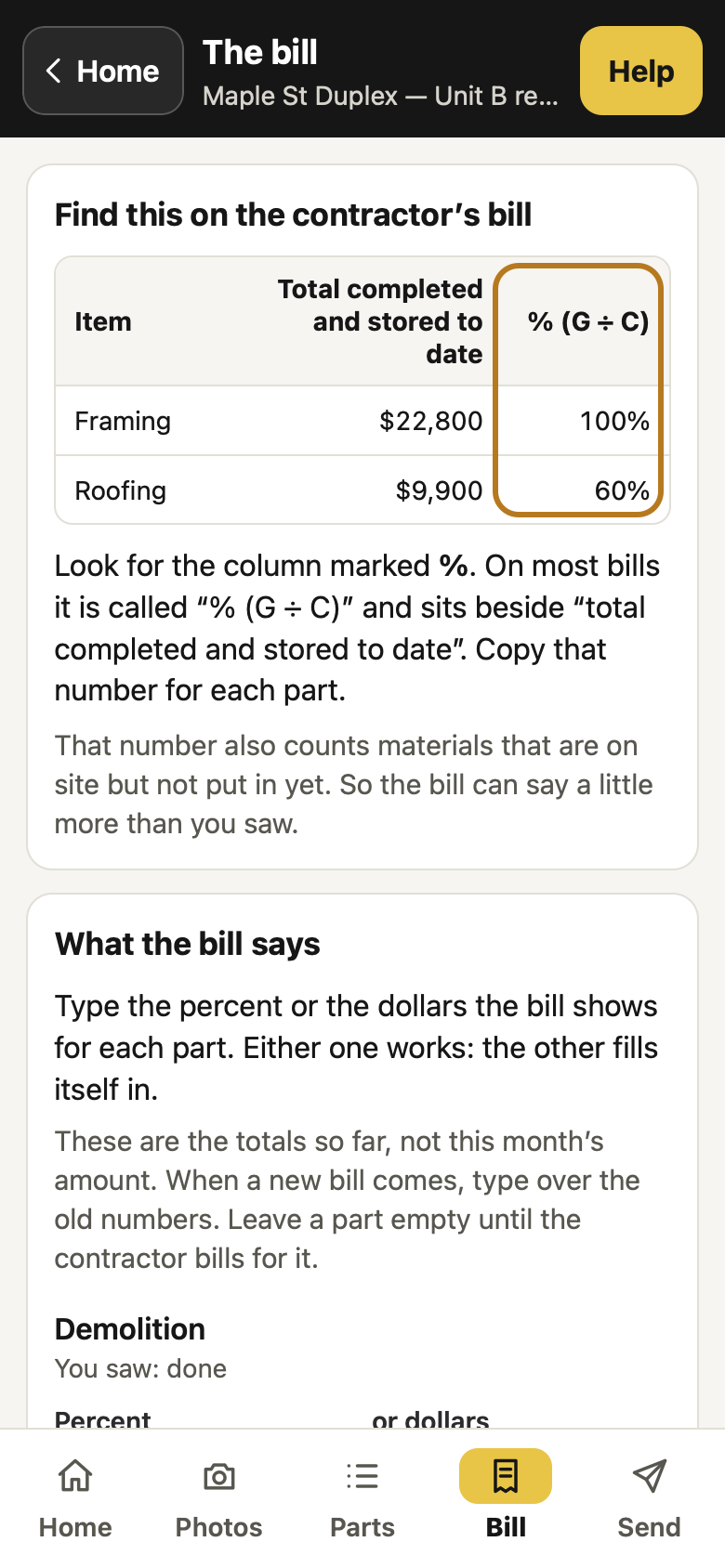
Got a bill from the contractor? Tap Bill at the bottom. The picture shows which column to find on the bill. It is marked %.
Look for this 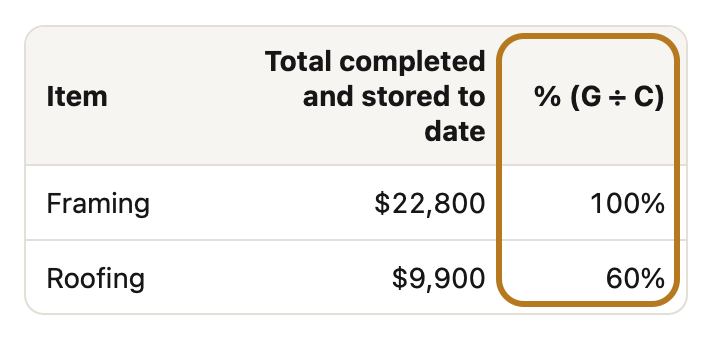
On most bills the column is called % (G ÷ C).
No bill yet? Skip this step and the next one. Nothing else changes.
-
10
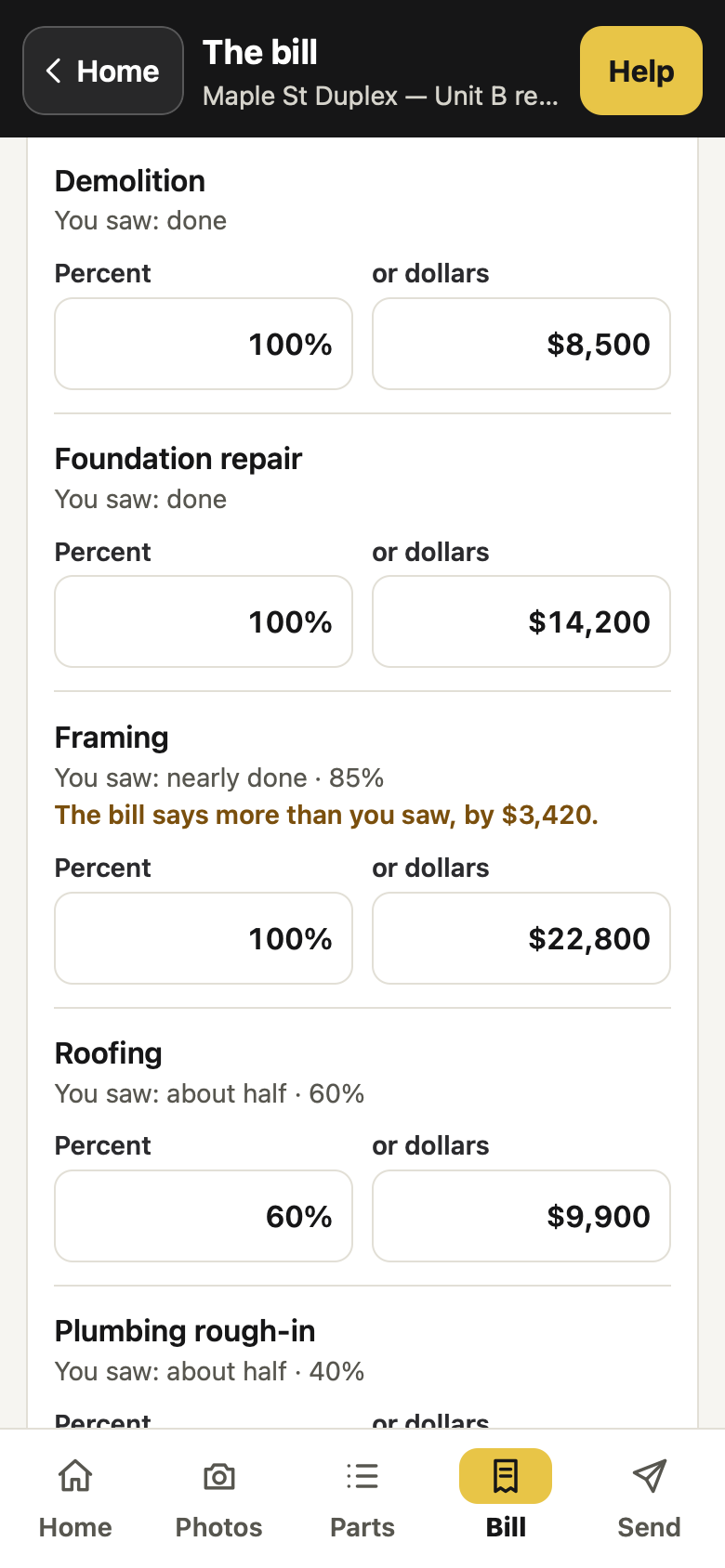
Type that number in the box beside each part. Leave a part empty until the contractor bills for it.
Look for this 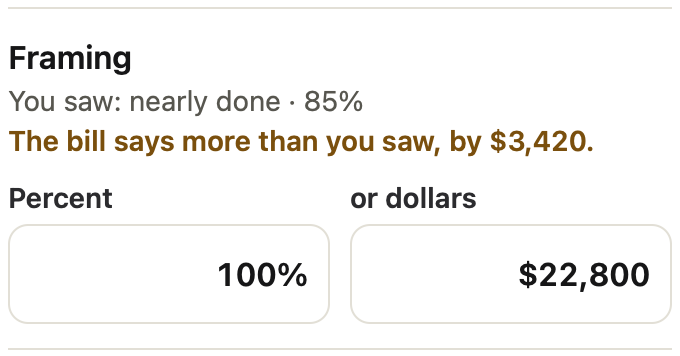
Where the bill says more than you saw, the app tells you. The job's first screen says it too. Tap See which part there.
When a new bill comes, type over the old numbers.
-
11
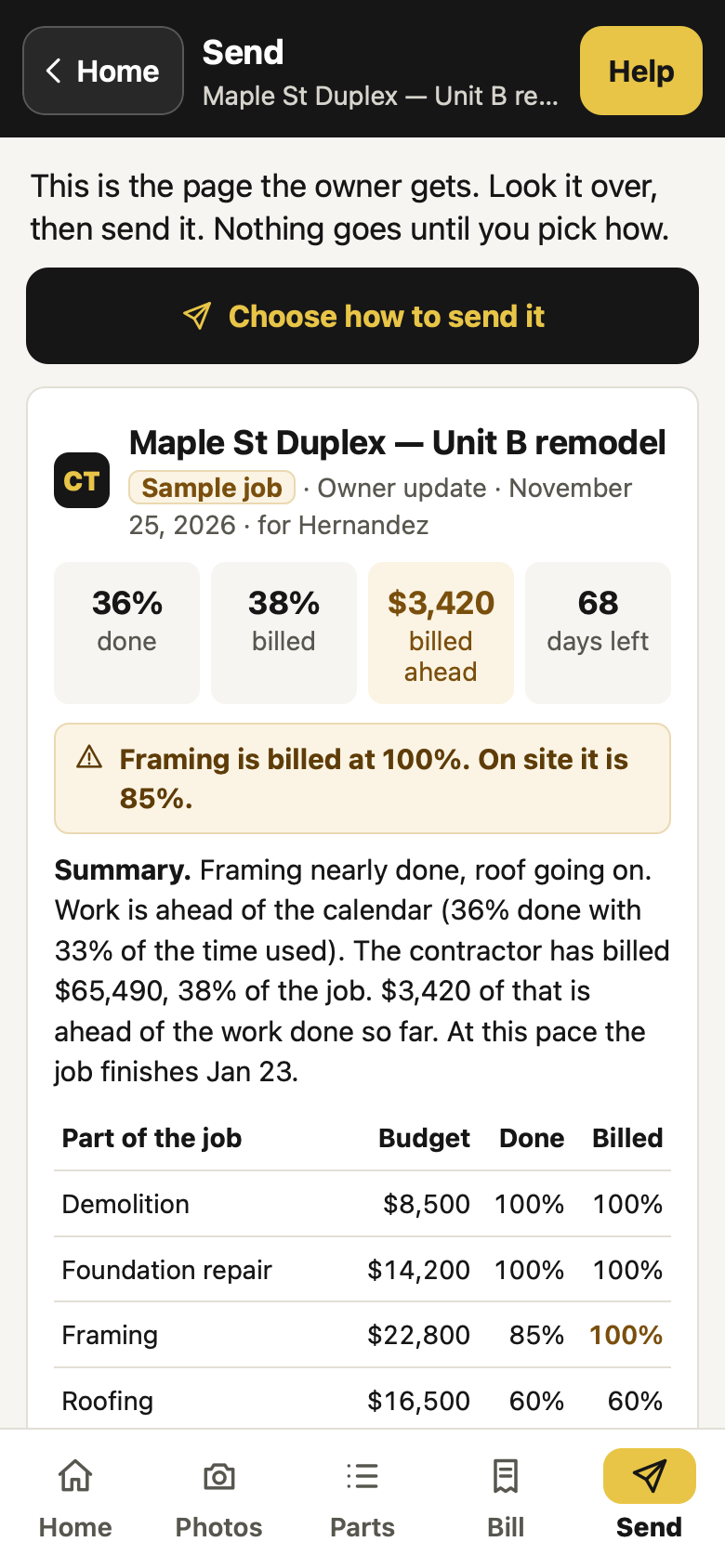
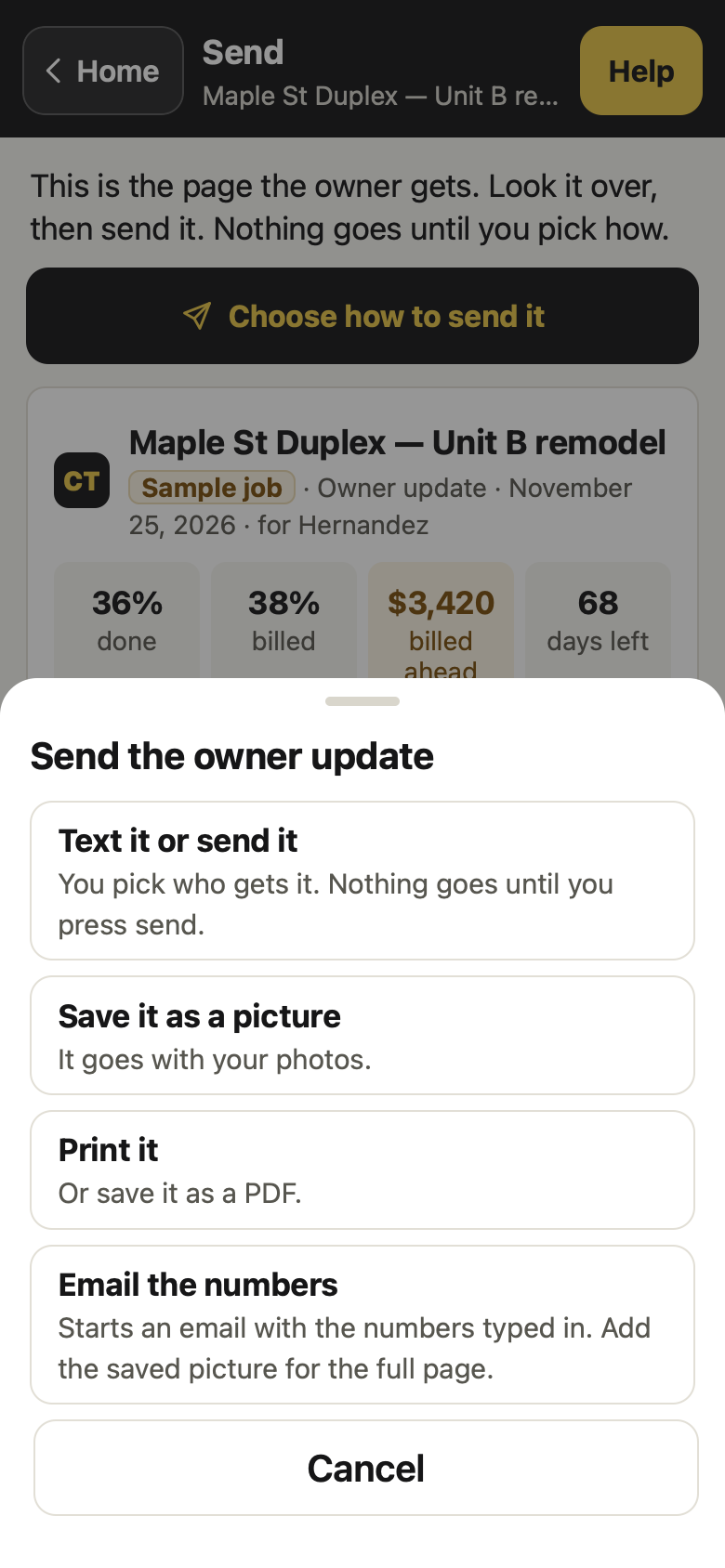
Tap Send at the bottom. This is the page the owner gets. Look it over. Then tap Choose how to send it. Nothing goes until you pick.
Look for this 
Want one picture instead? Scroll down and tap Make a picture to text instead.
-
12
Tap Text it or send it. Your phone's share menu opens. Pick who gets it.
Look for this 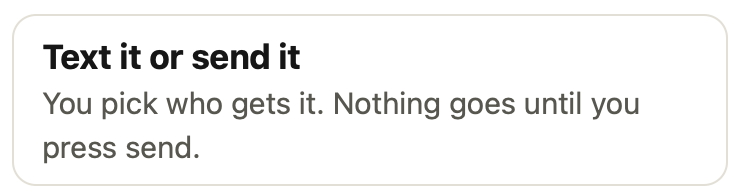
You can also tap Save it as a picture, Print it or Email the numbers.
-
13
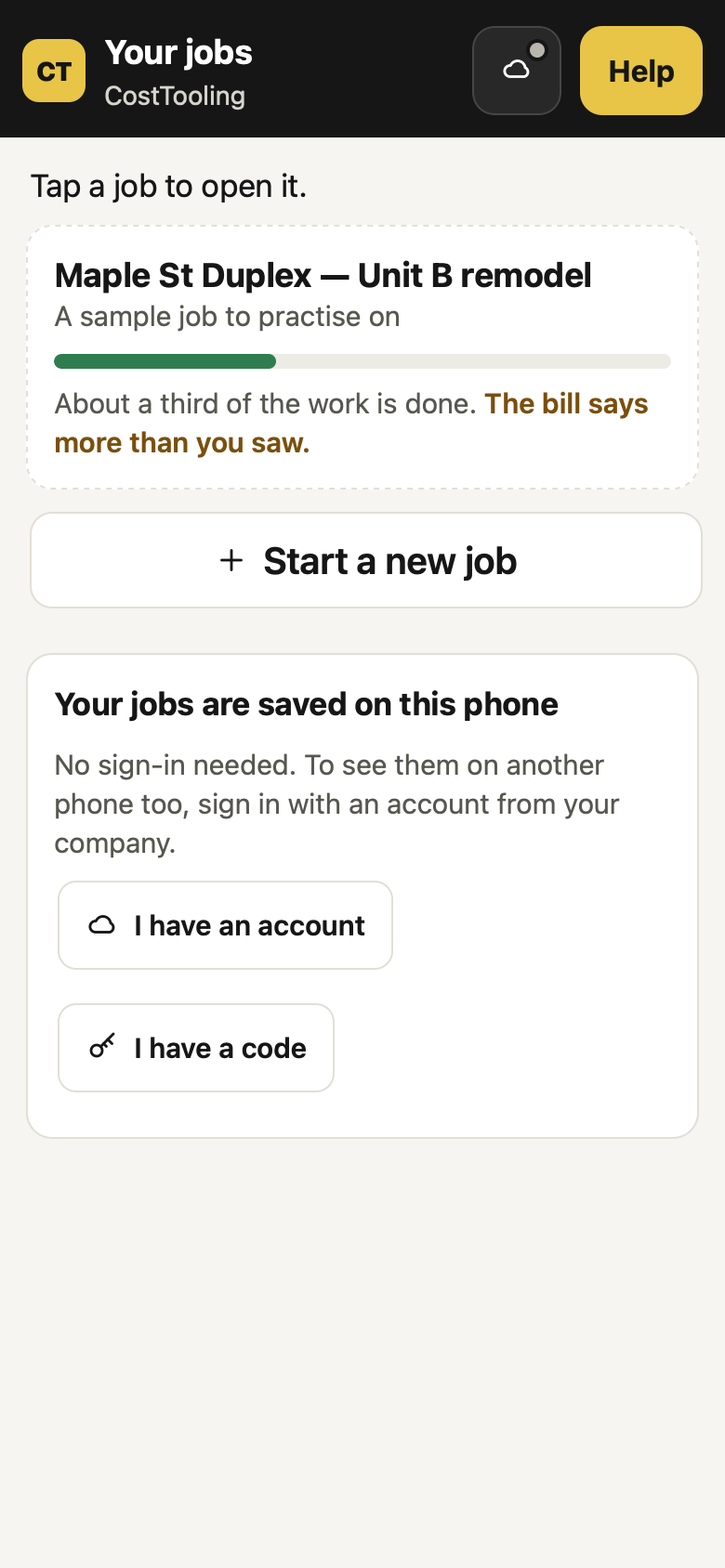
Your jobs are saved on this phone. Want them on another phone too? You need an account from your company. On the job list, below the jobs, tap I have an account or I have a code. The next sections show how.
Look for this 
To get to the job list, tap Home at the bottom, then Jobs at the top.
Got a code from your company? Tap I have a code instead.
Not ready? Everything still works on this one phone.
Add someone to your team
For the person who runs the company. There are three ways: by email, with a one-time code, or with one code for the whole team.
-
1
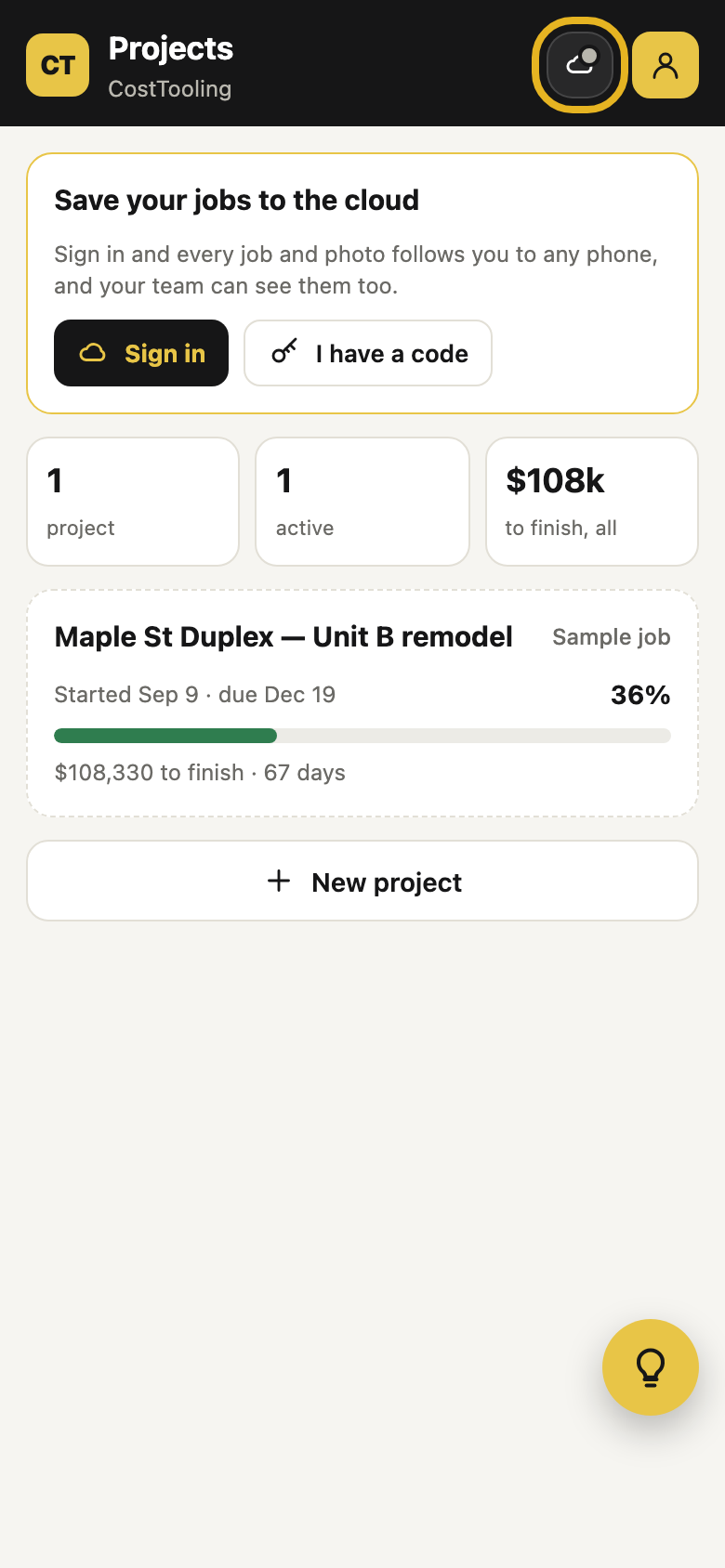
Open costtooling.com. On the job list, tap the cloud button at the top, beside Help.
Look for this 
-
2
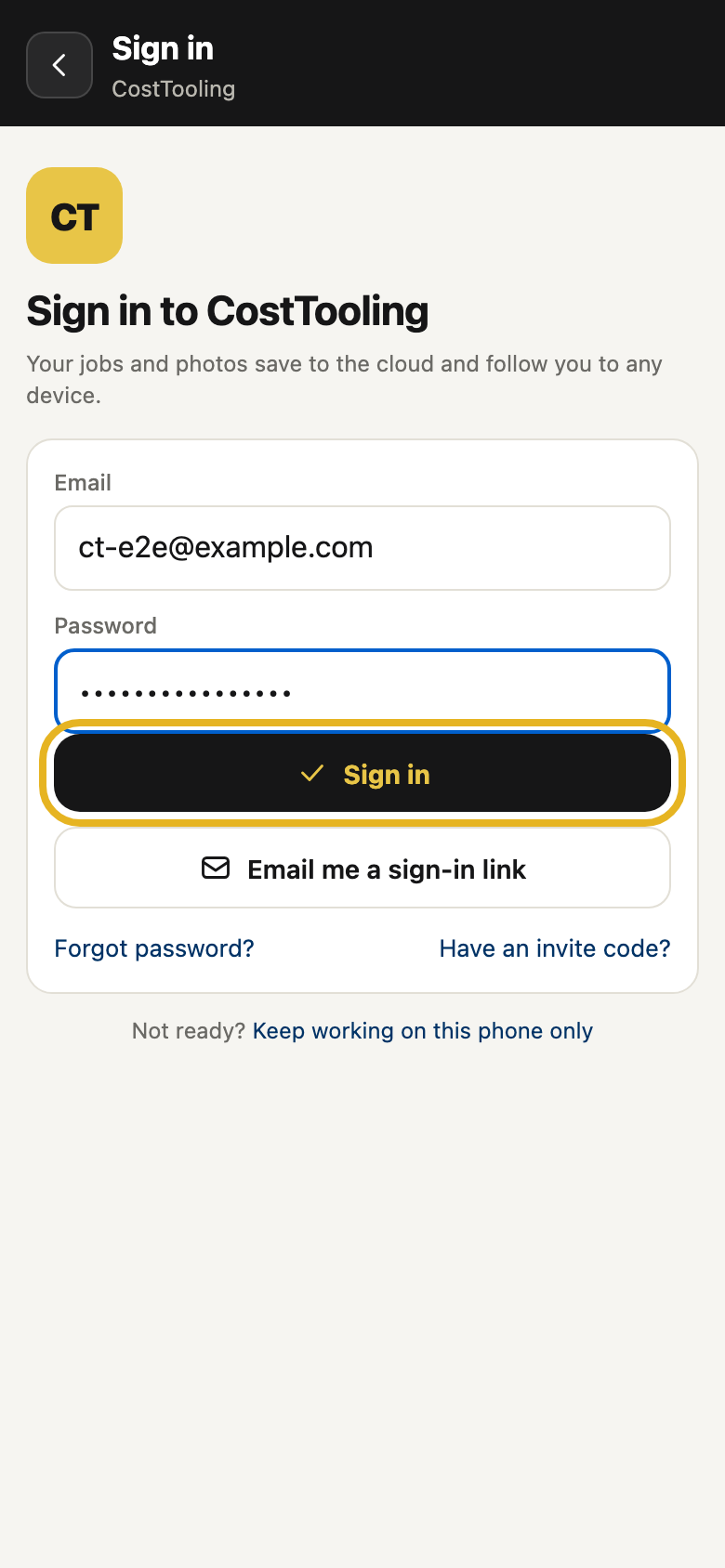
Type your email and password. Tap Sign in.
Look for this 
-
3
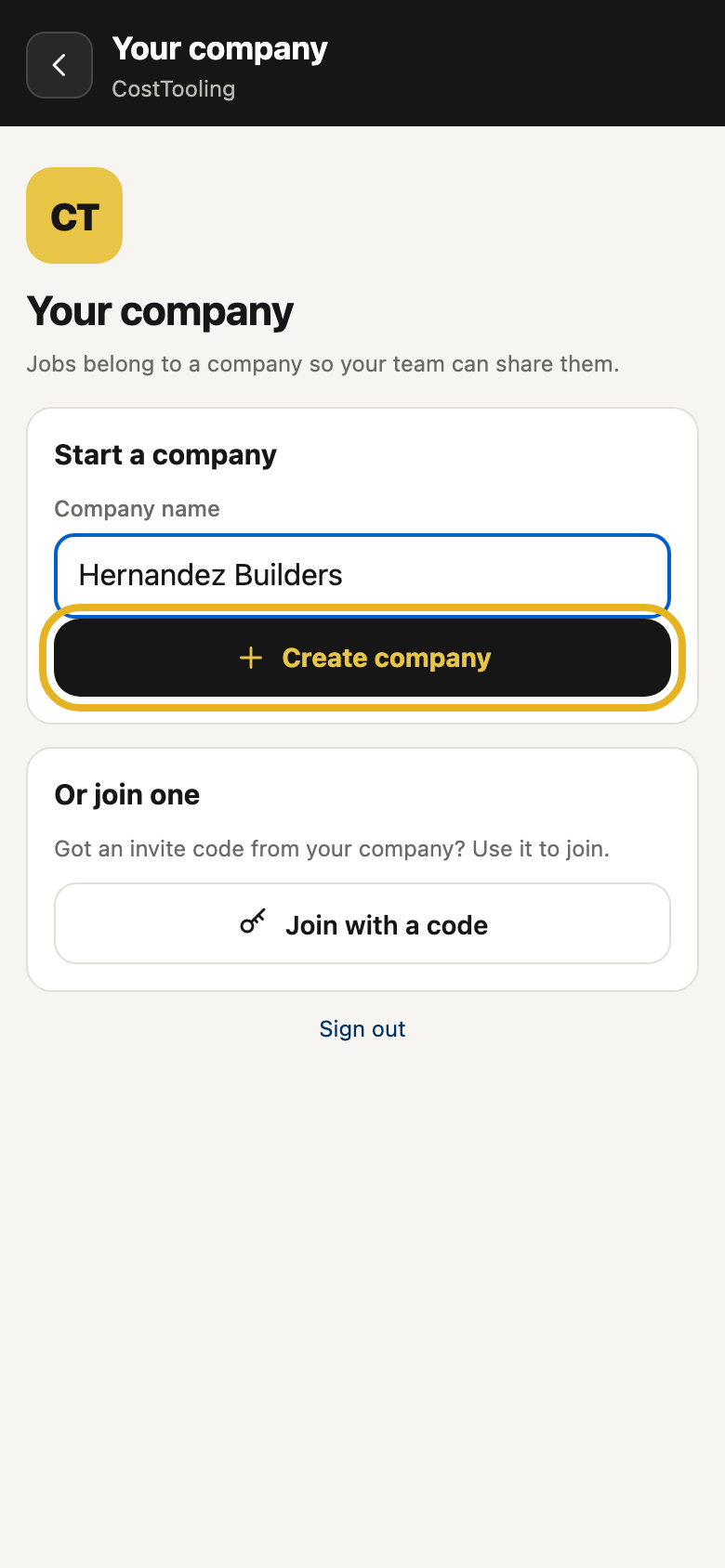
First time only: type your company name. Tap Create company.
Look for this 
-
4
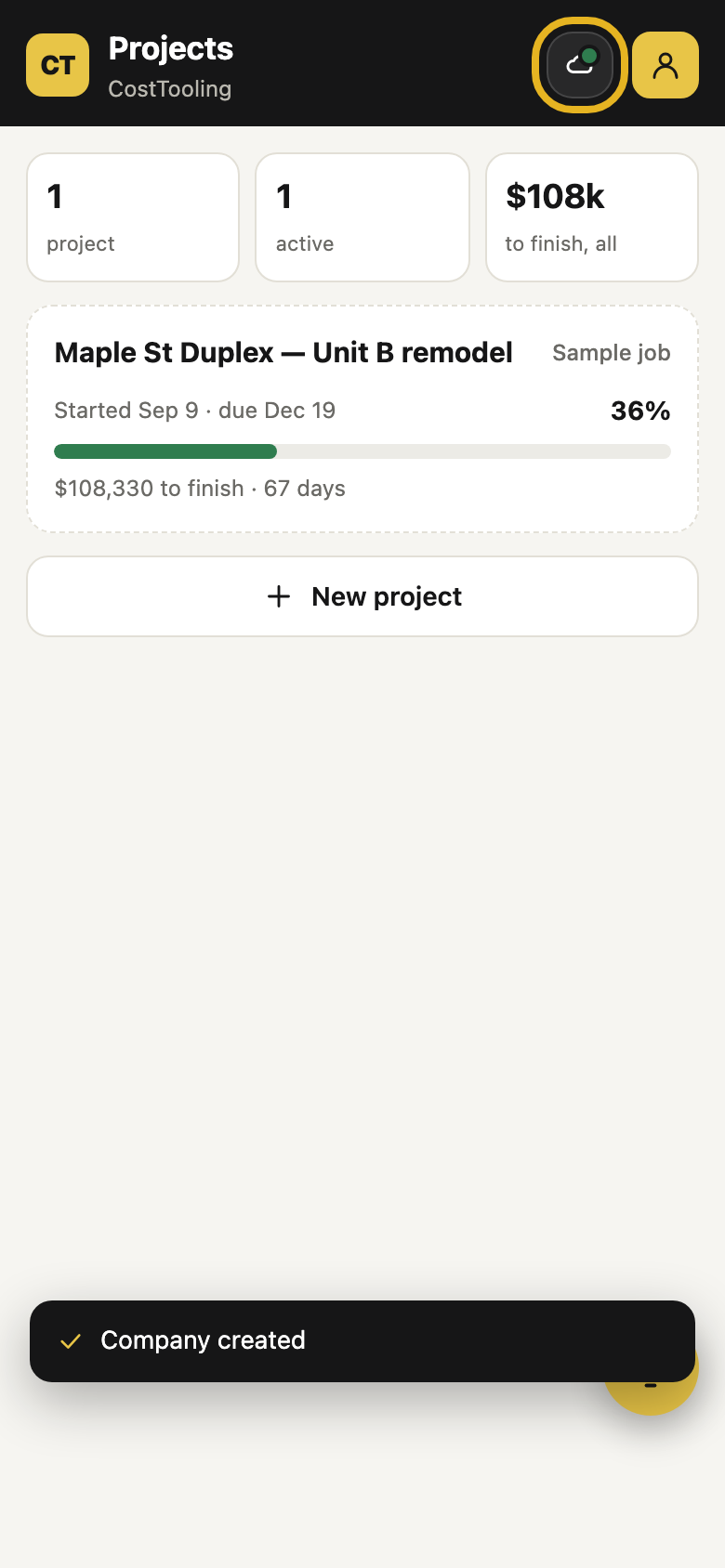
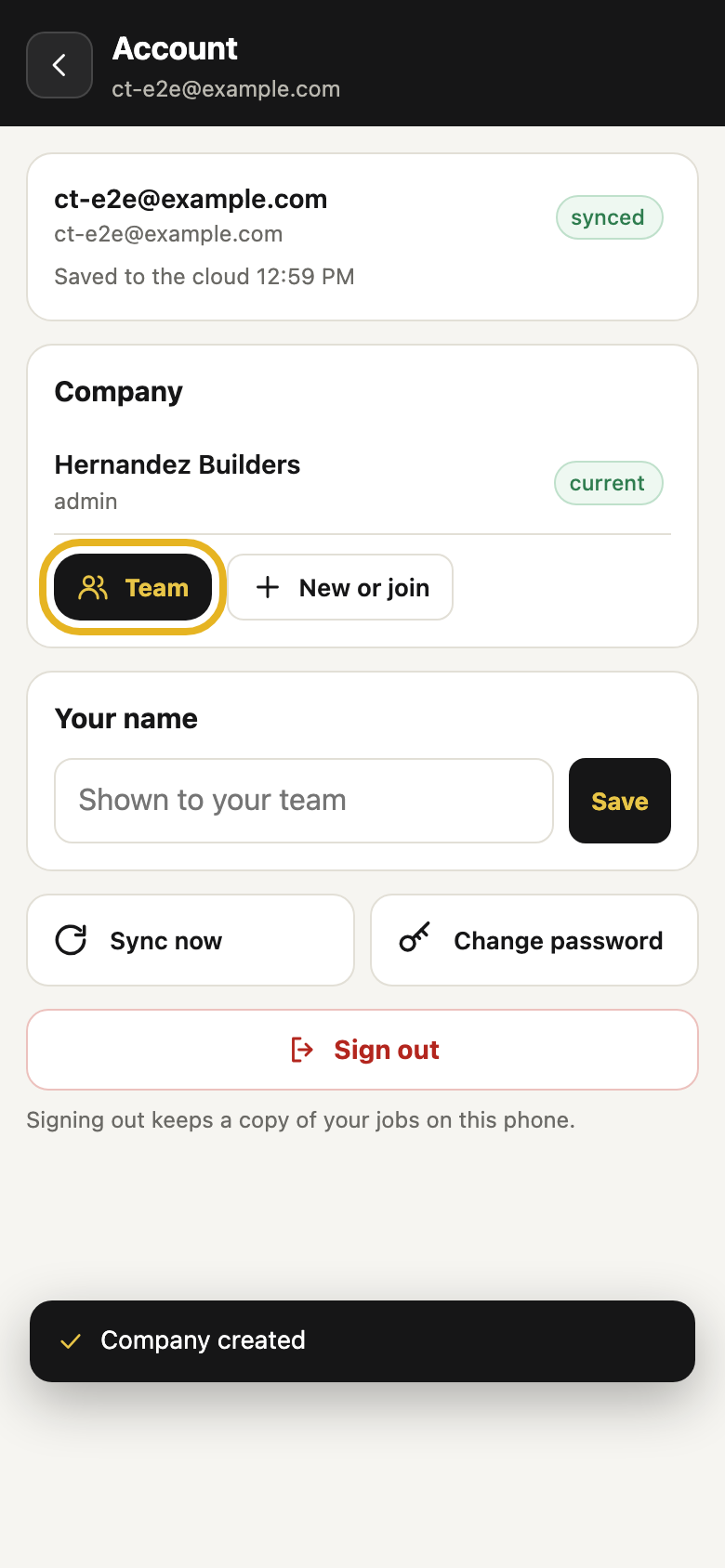
Tap the cloud button again. The green dot means your jobs are saved to the cloud.
Look for this 
-
5
Tap Team.
Look for this 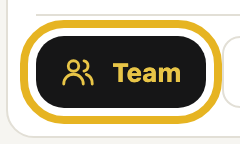
-
6
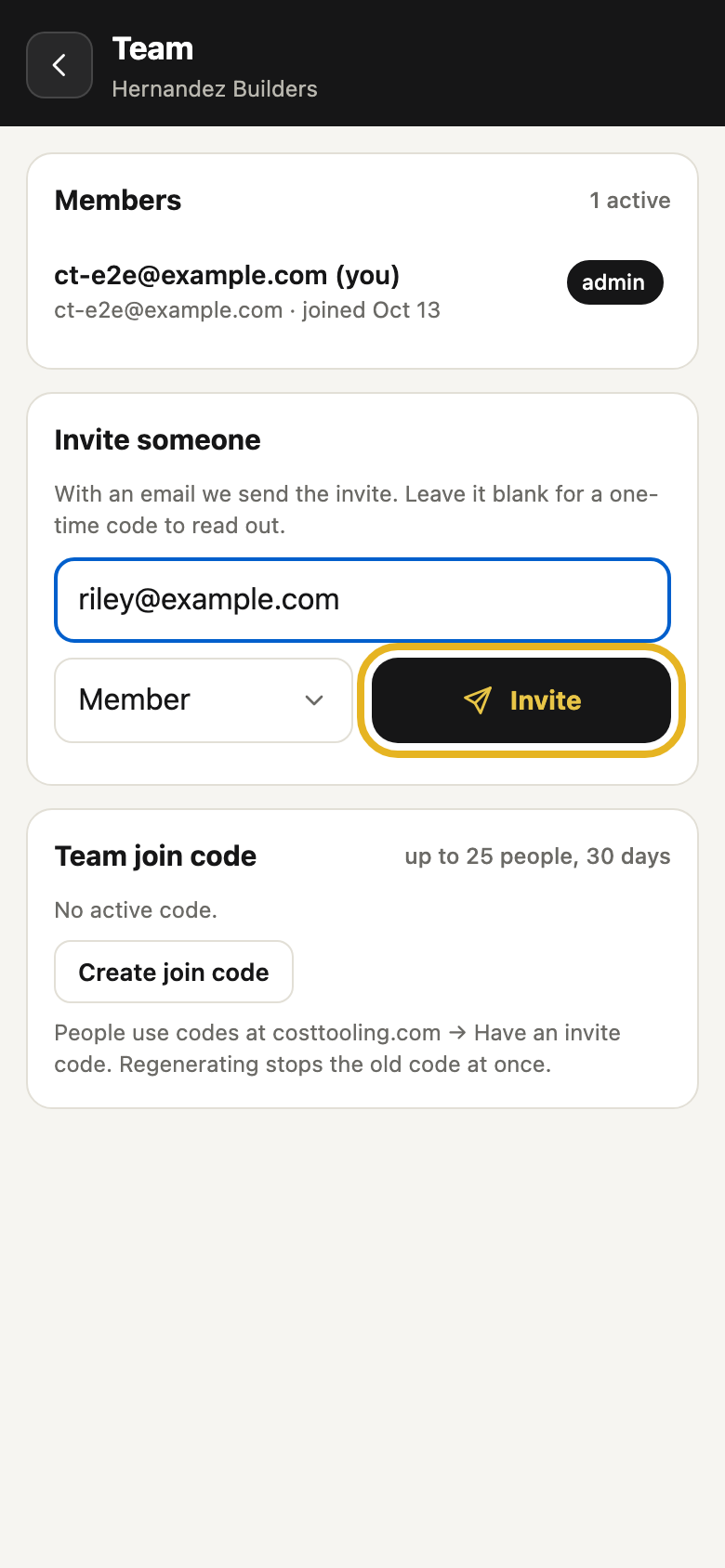
Way 1 · By emailType their email. Tap Invite. They get an email with a link.
Look for this 
Change Member to Admin if they should be able to add people too.
-
7
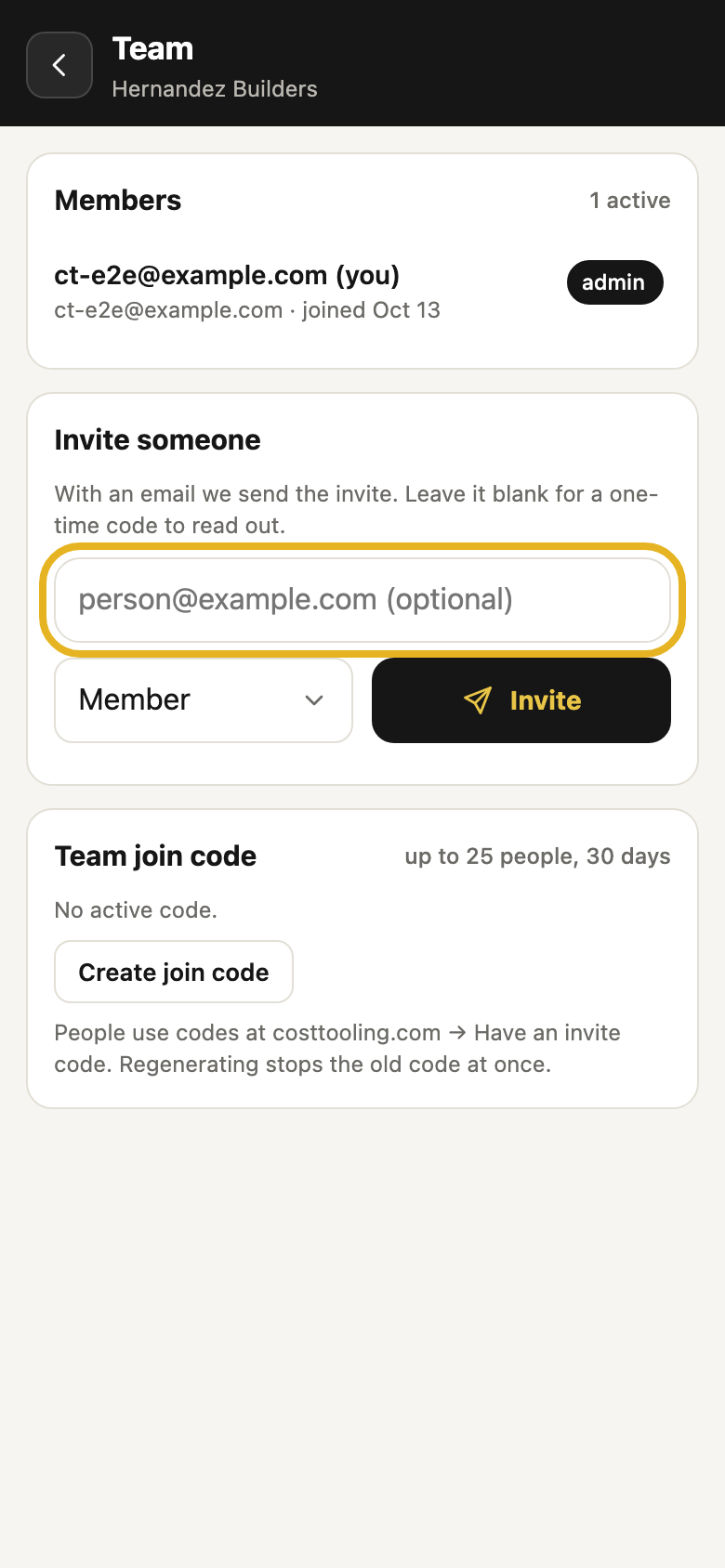
Way 2 · One-time codeLeave the email box empty. Tap Invite.
Look for this 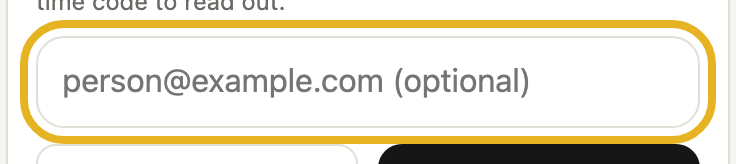
-
8
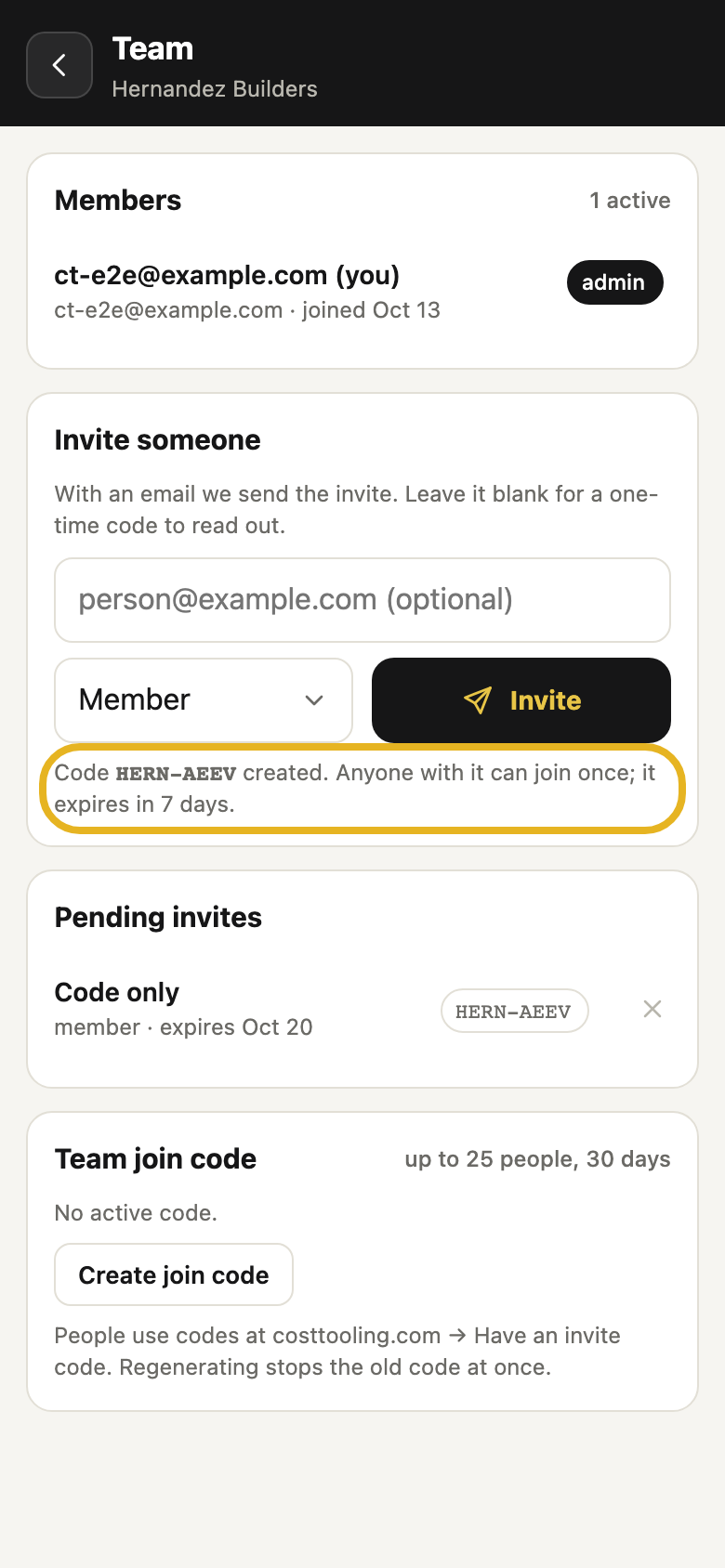
Read the code out or text it. It works for one person, for 7 days.
Look for this 
-
9
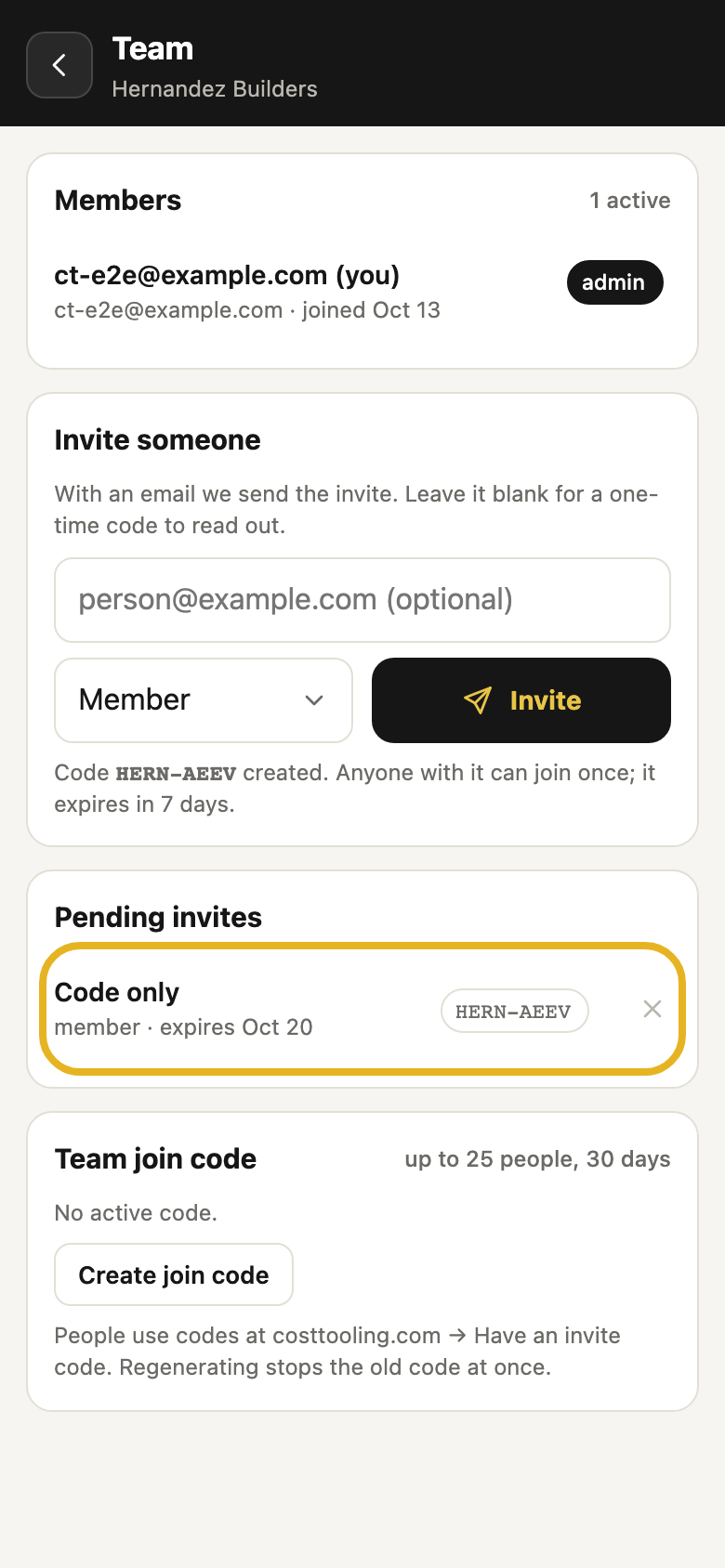
The code waits under Pending invites. Tap the × to cancel it.
Look for this 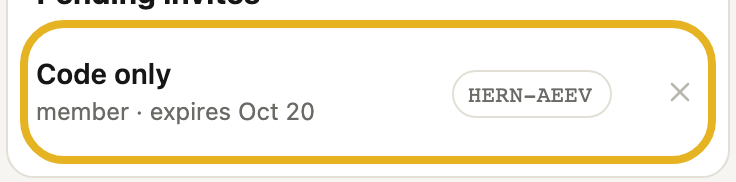
-
10
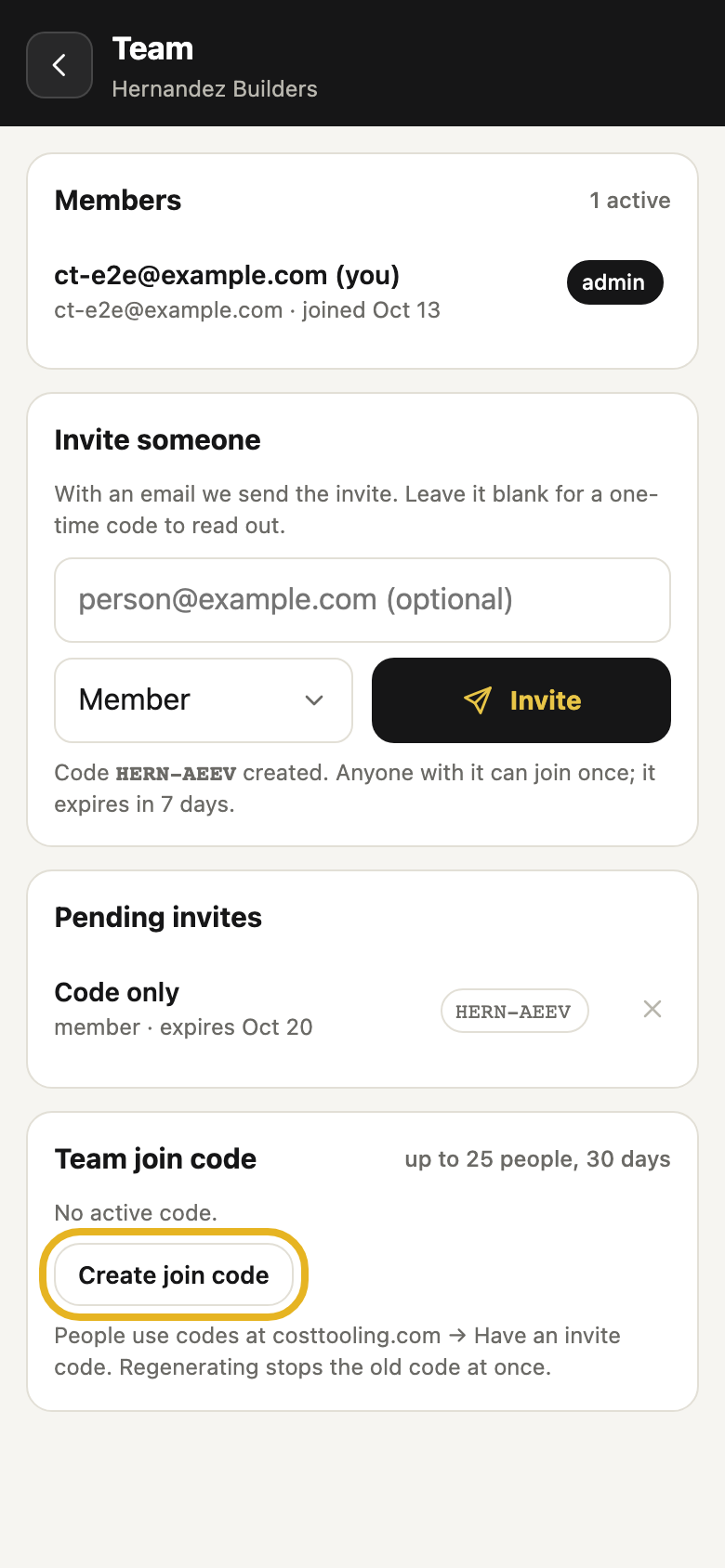
Way 3 · Whole teamTap Create join code.
Look for this 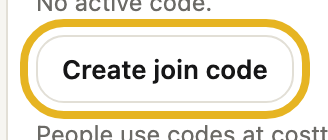
-
11
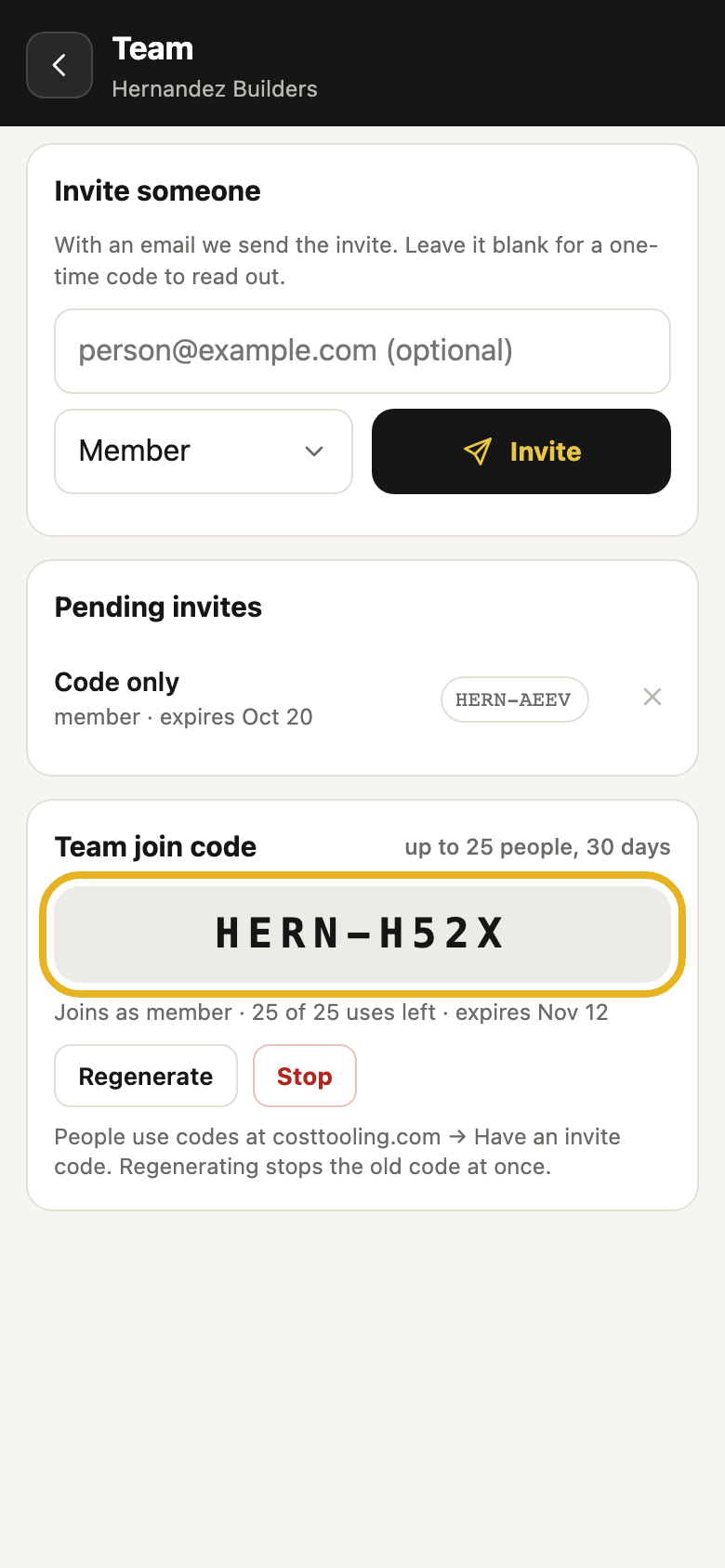
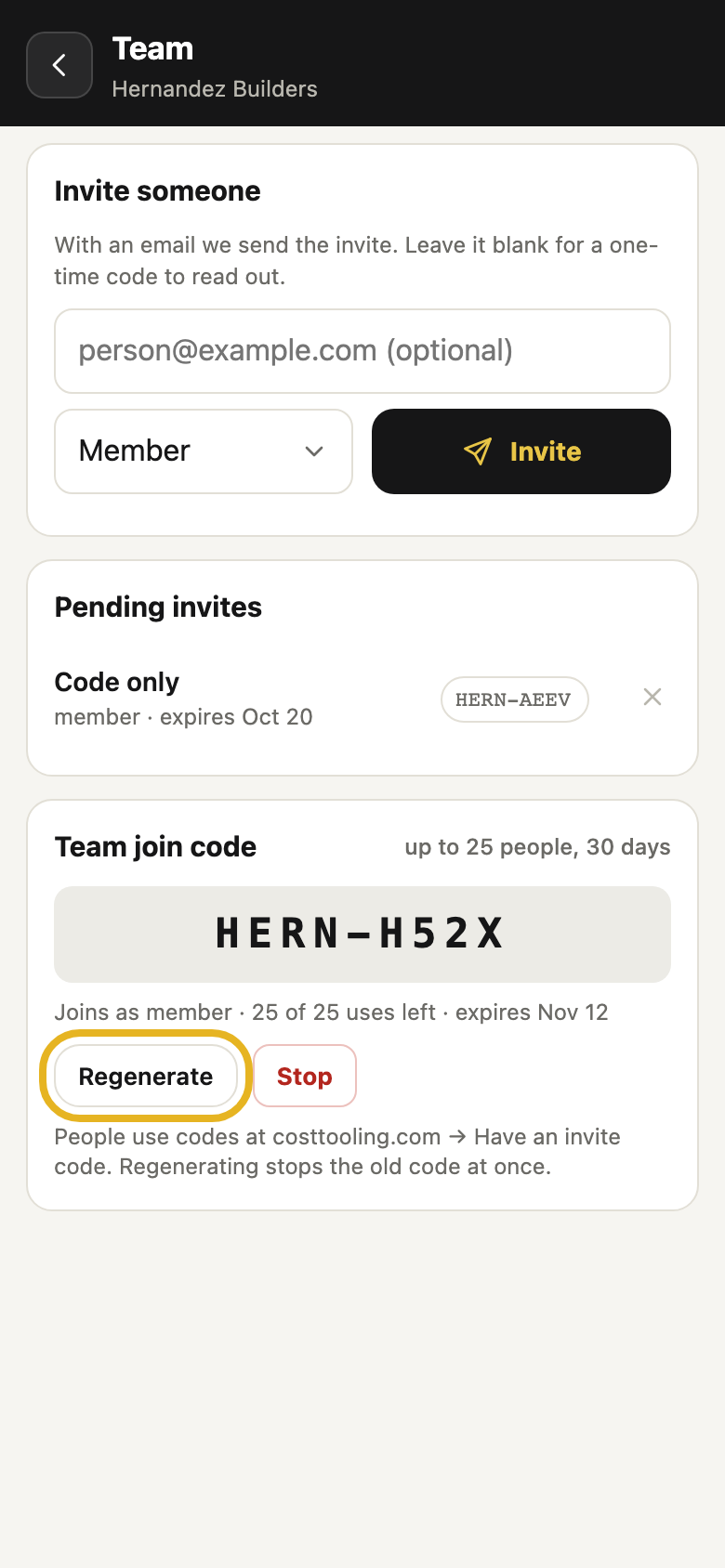
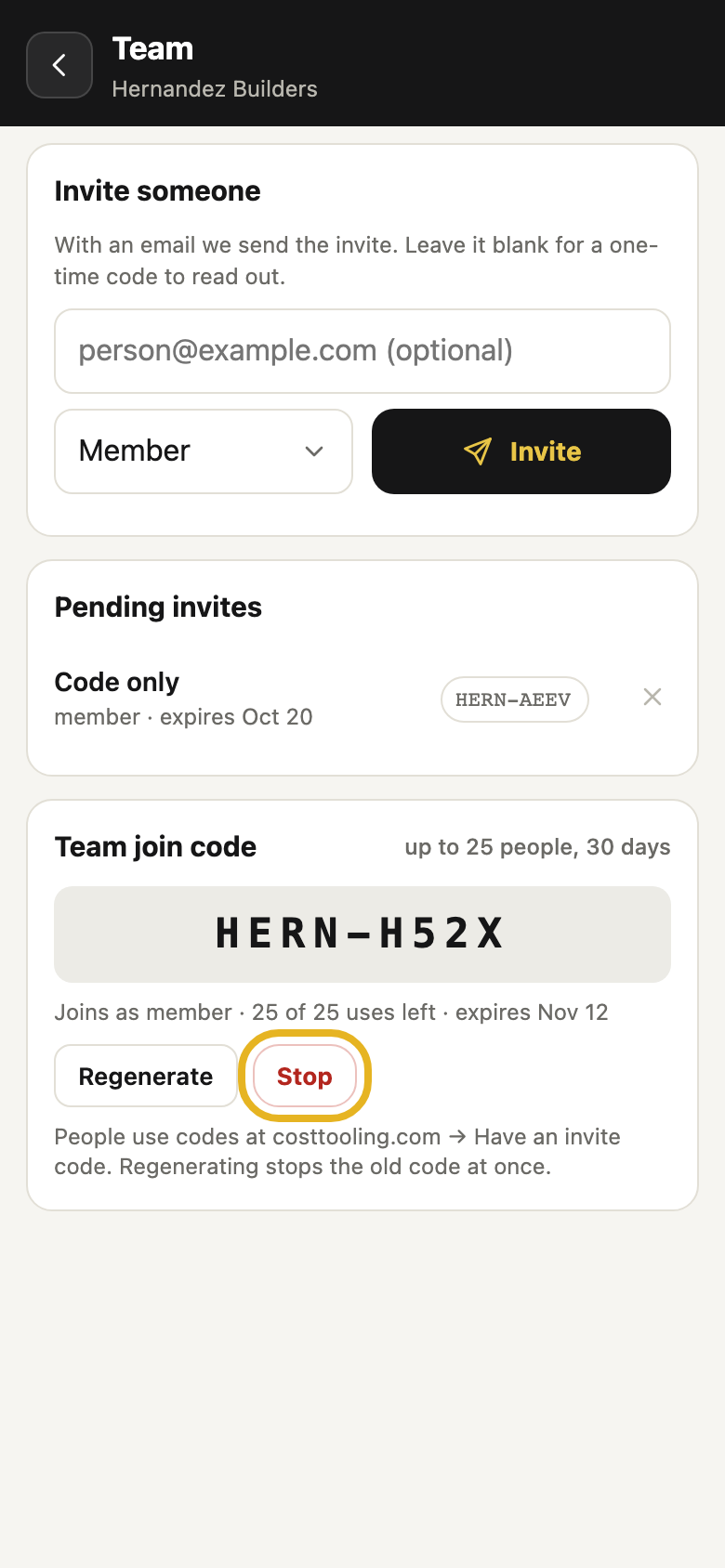
Share this code with everyone. It works for up to 25 people, for 30 days.
Look for this 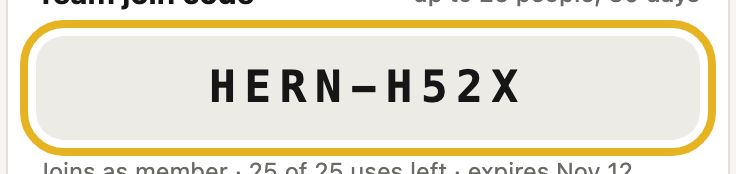
-
12
Regenerate makes a new code and stops the old one at once.
Look for this 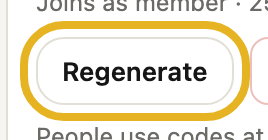
-
13
Stop turns the code off.
Look for this 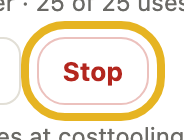
Join with a code
For a new person. You need a code from whoever runs your company.
-
1
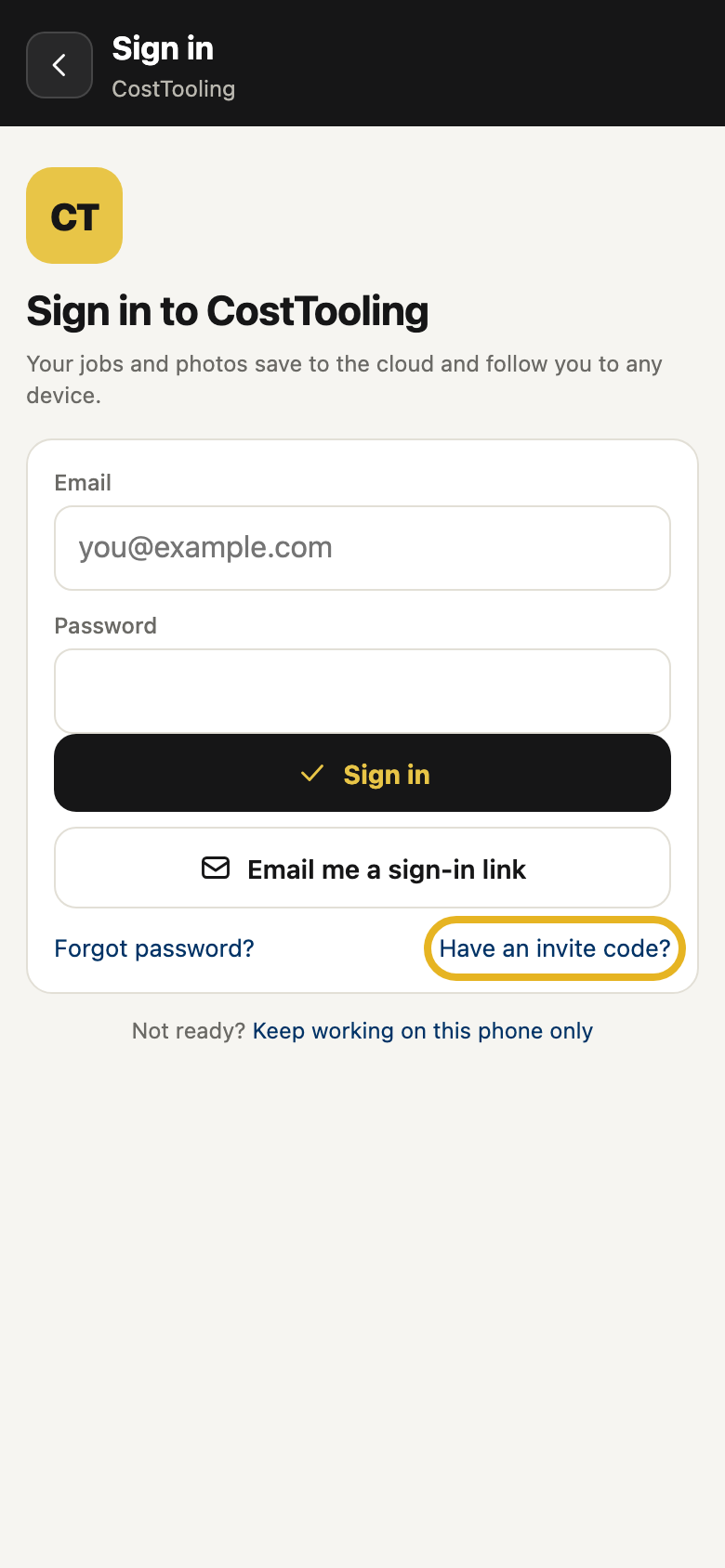
Open costtooling.com. Tap the cloud button at the top. Then tap Have an invite code?
Look for this 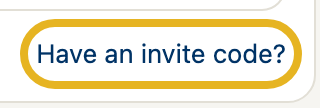
Or tap I have a code on the job list. It opens the same screen.
-
2
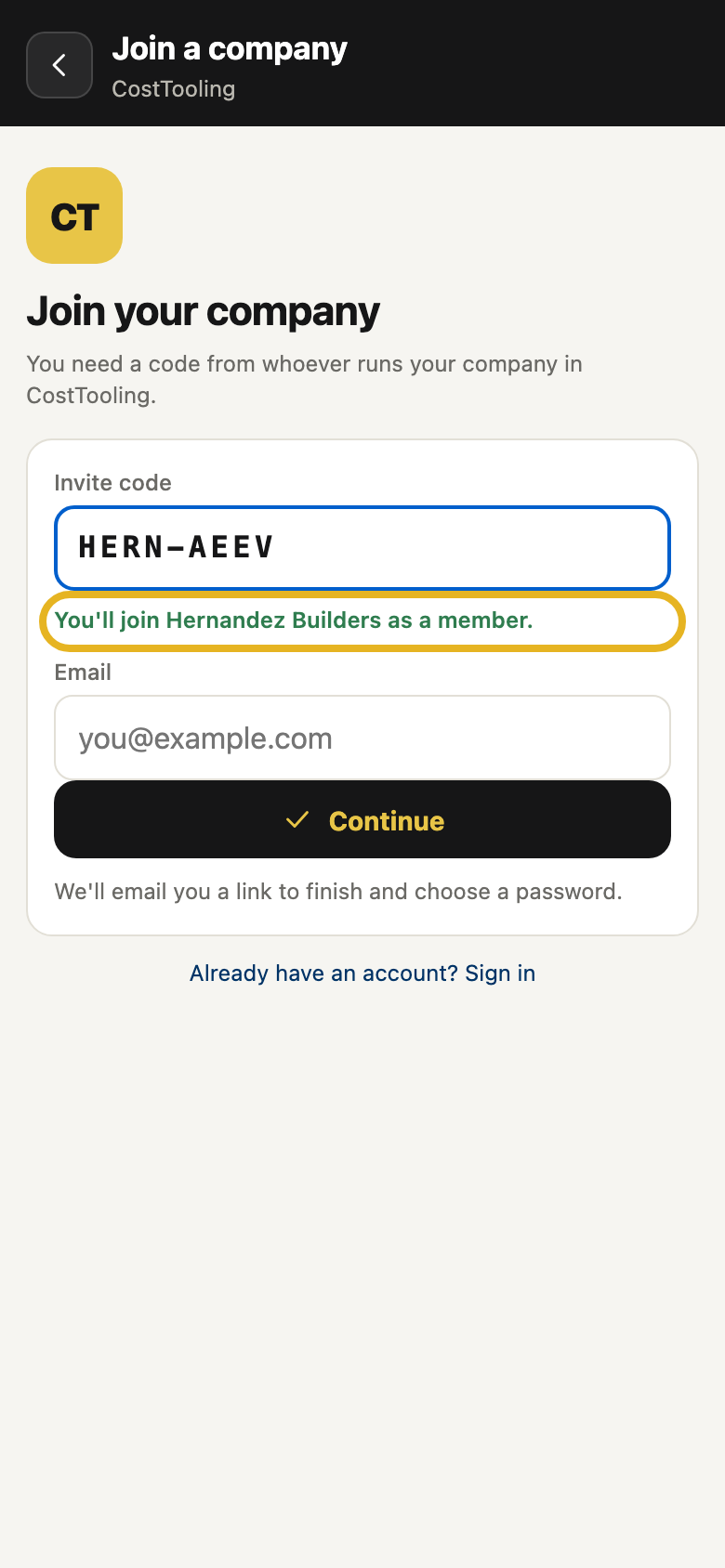
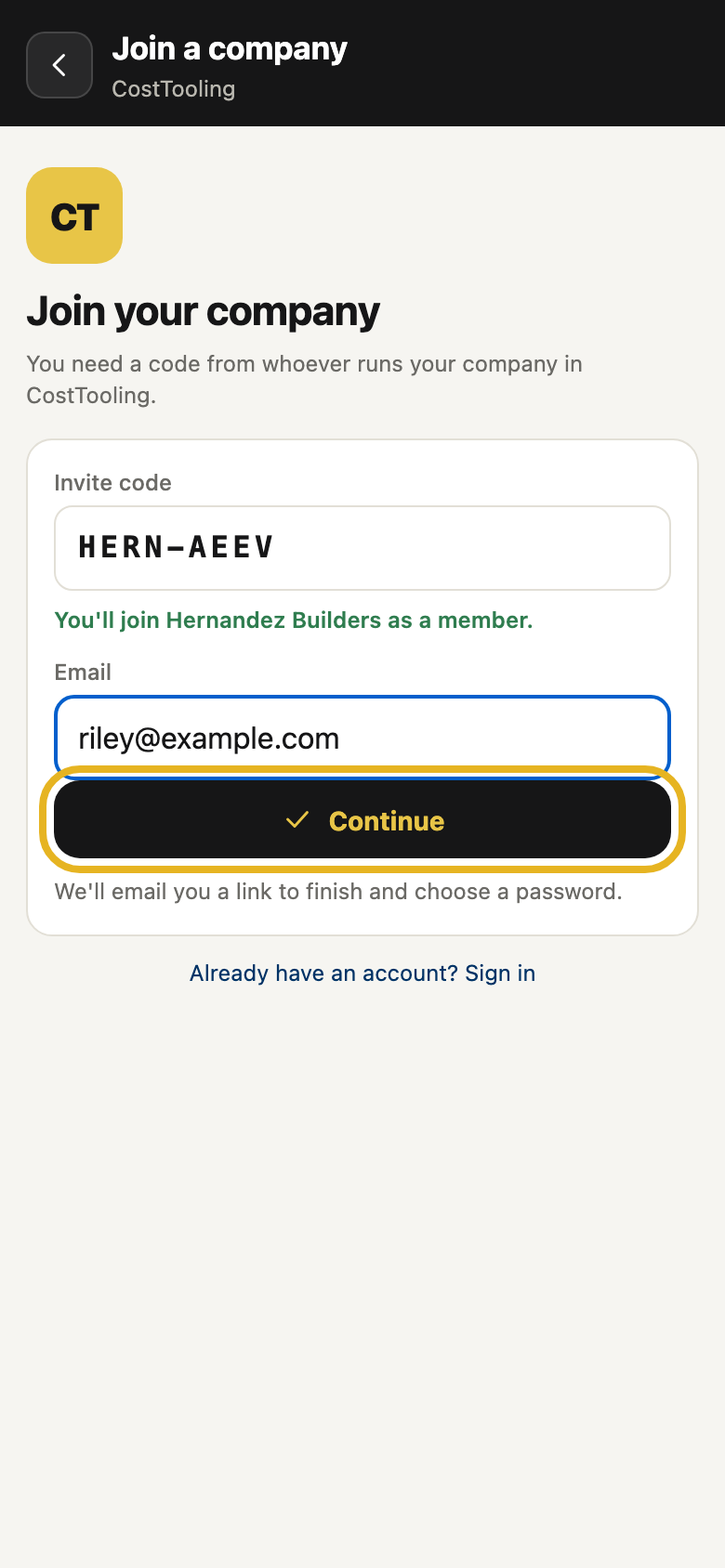
Type the code. Wait for the green line. It names your company.
Look for this 
-
3
Type your email. Tap Continue.
Look for this 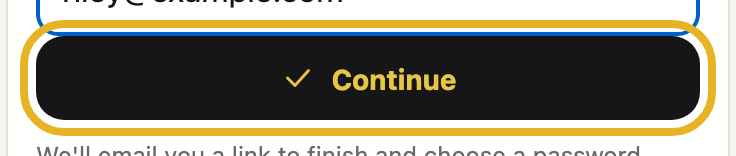
-
4
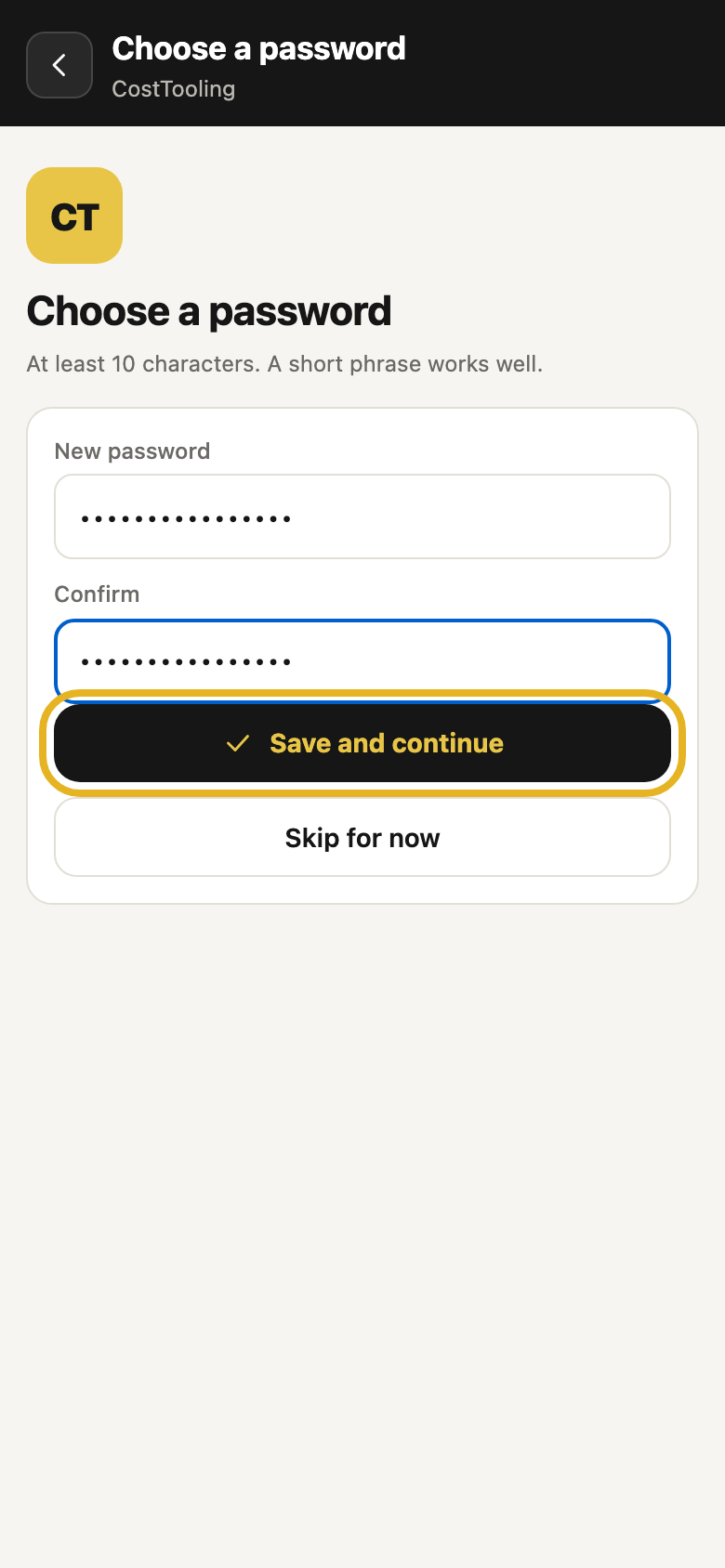
Open your email. Tap the link. Choose a password. Tap Save and continue.
Look for this 
Already have a CostTooling account? Then the code adds you to the company right away. Just sign in.
Forgot your password
You can fix this yourself. It takes one email.
-
1
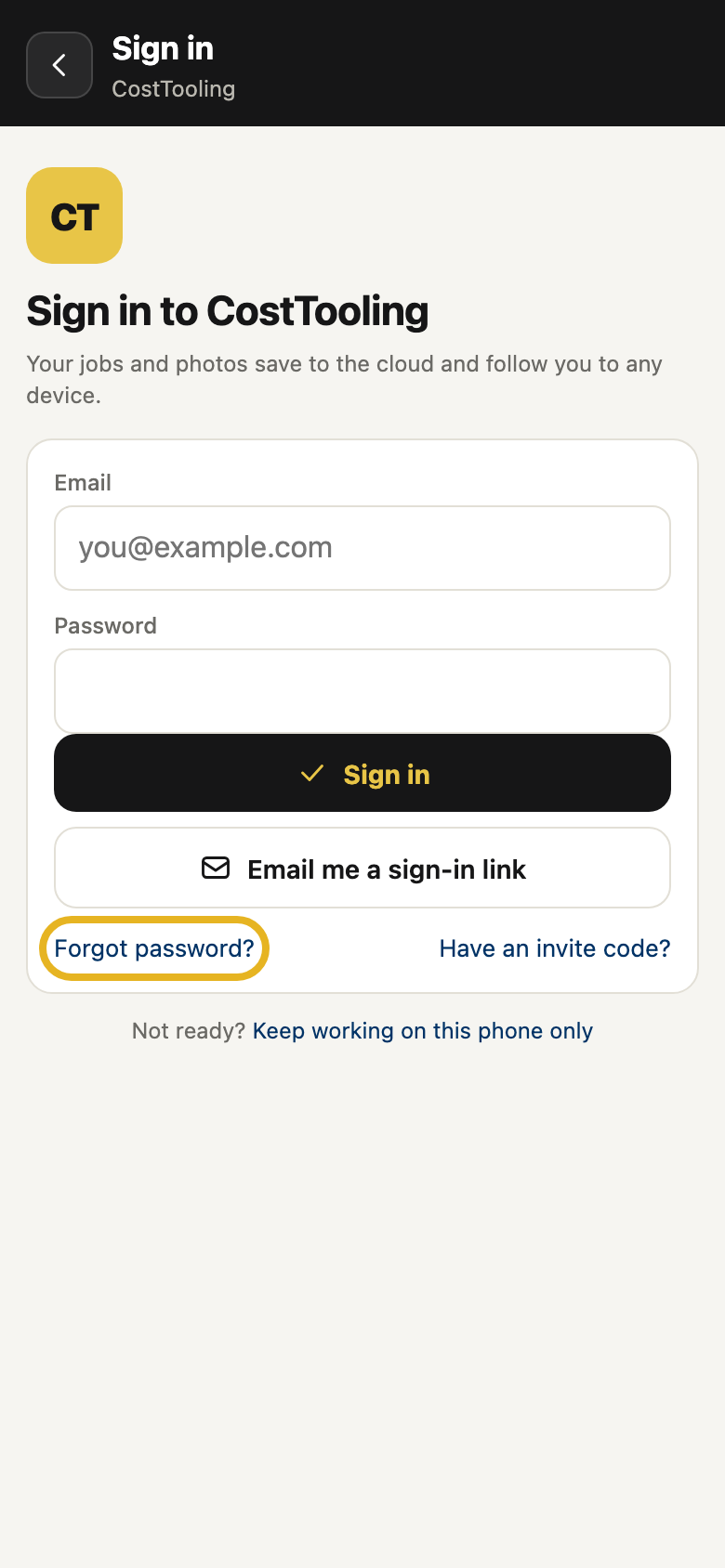
On the sign-in screen, tap Forgot password?
Look for this 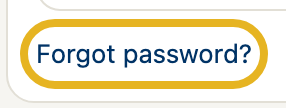
-
2
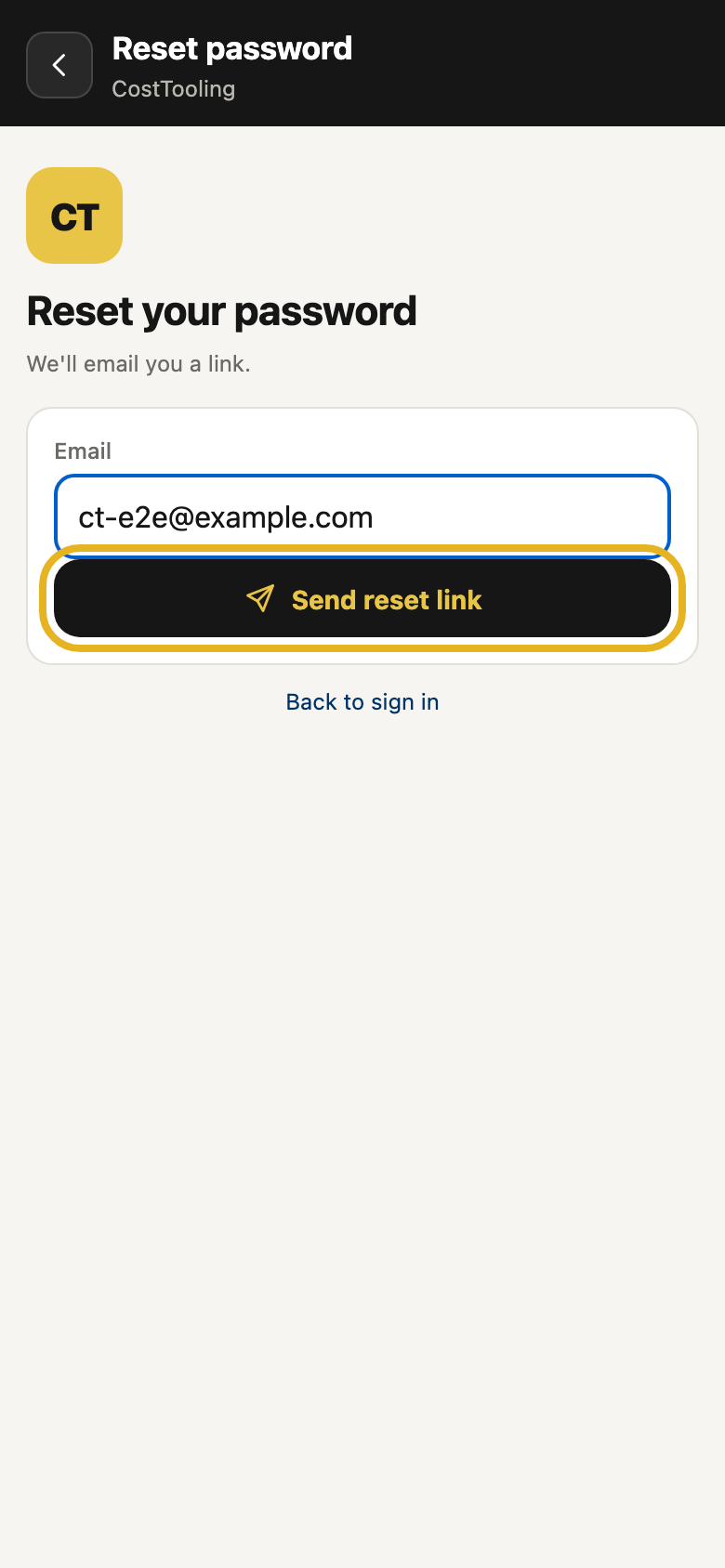
Type your email. Tap Send reset link.
Look for this 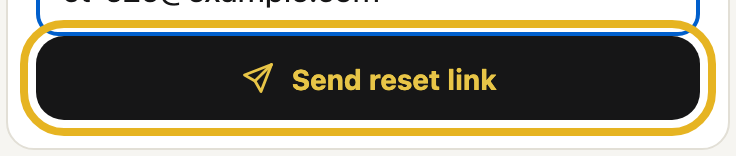
-
3
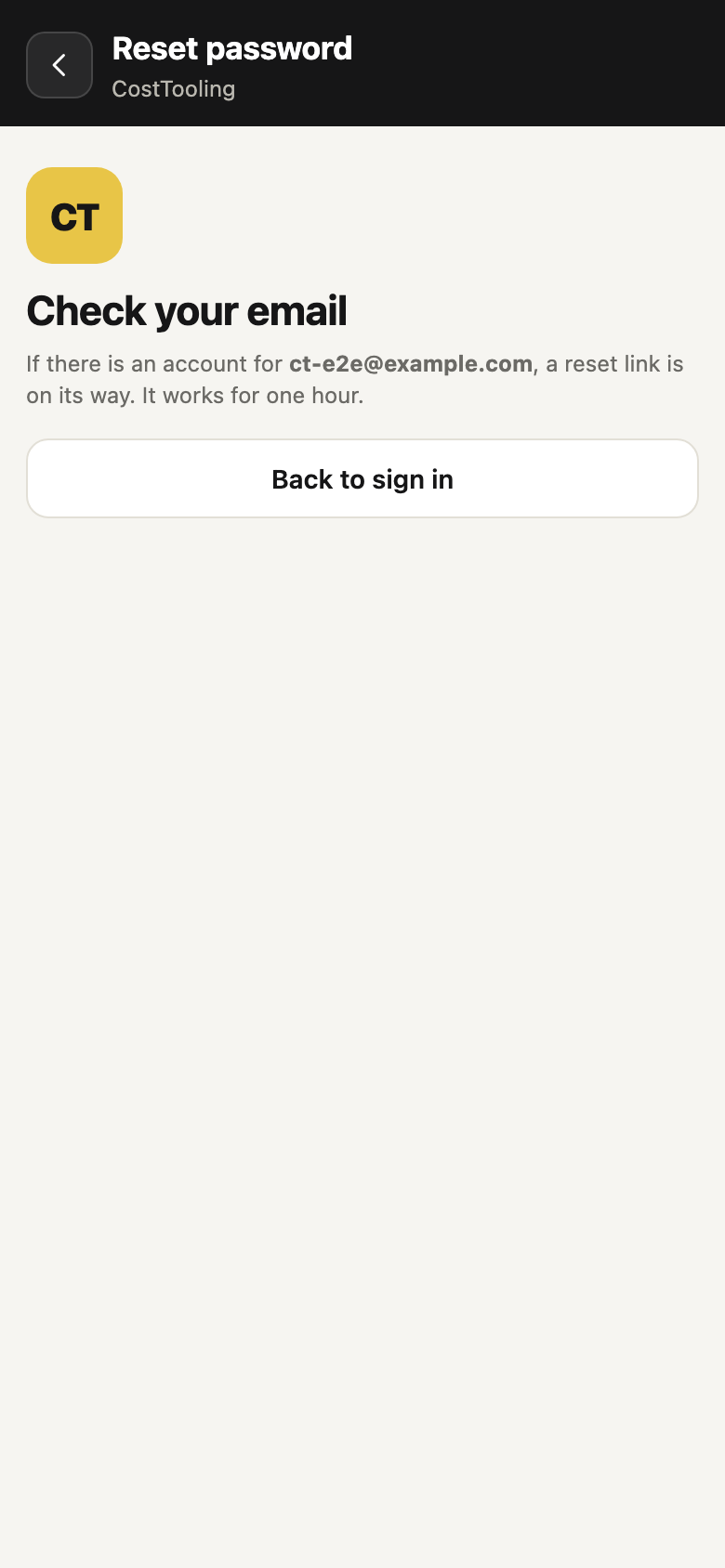
Check your email. The link works for one hour.
-
4
Tap the link. Choose a new password. Tap Save and continue.
Look for this -
5
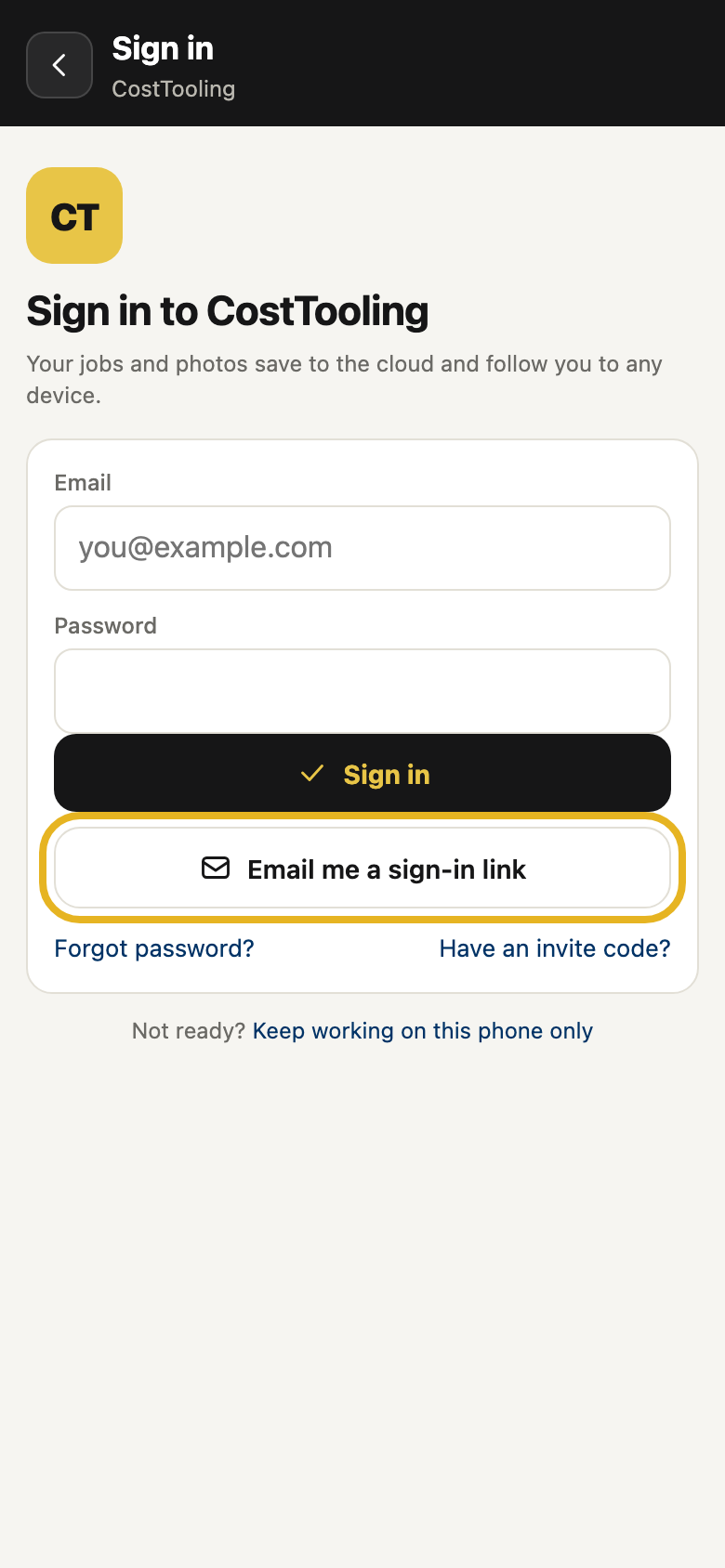
No password at all? Type your email. Then tap Email me a sign-in link. No password needed.
Look for this 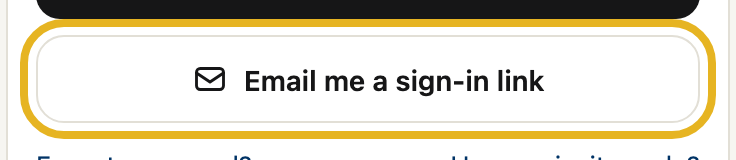
-
6
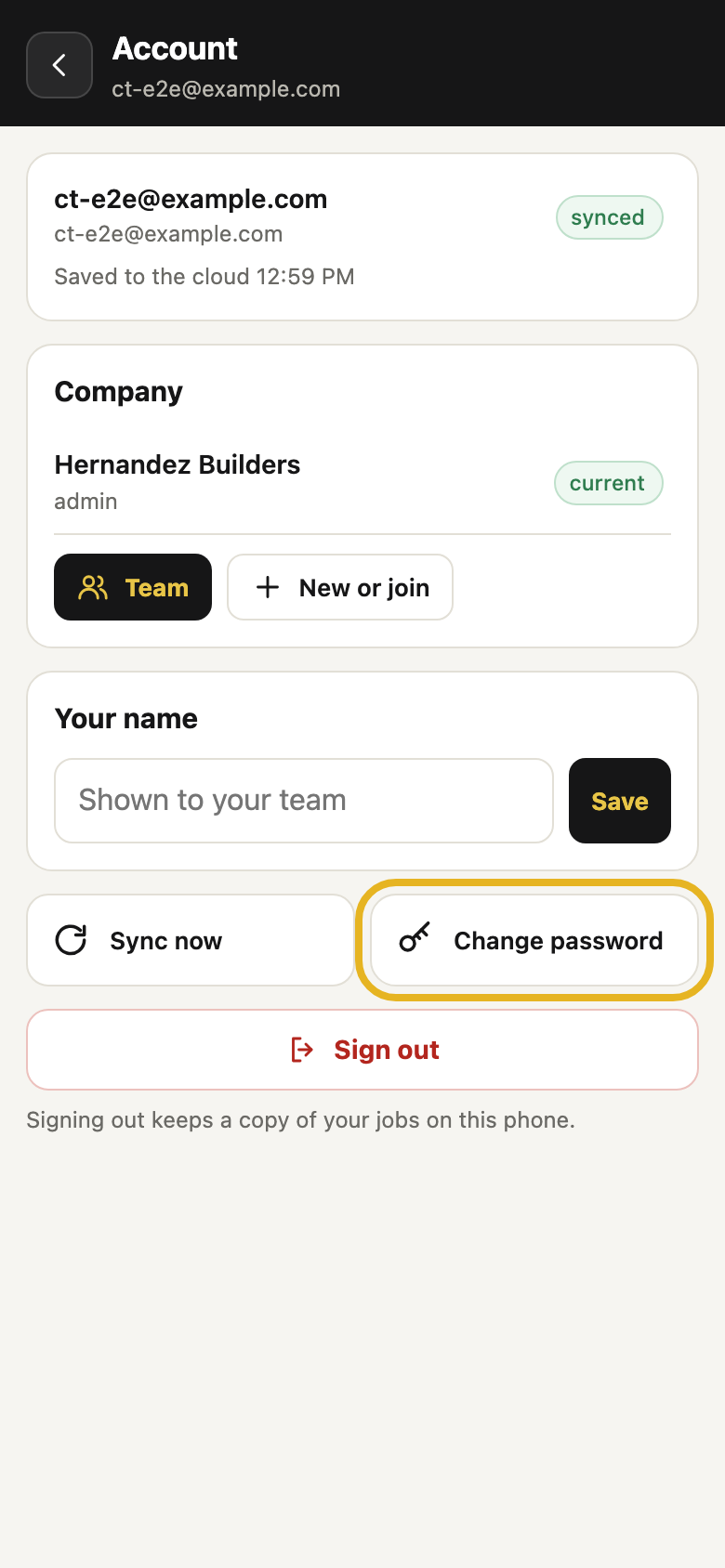
Want a new password any time? Tap the cloud button, then Change password.
Look for this 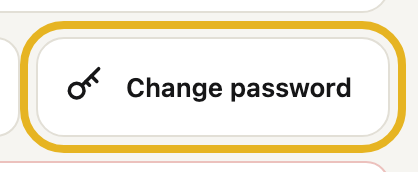
Help someone who is locked out
For admins. Use this when a team member cannot get into their email.
-
1
Tap the cloud button, then Team.
Look for this -
2
Find the person in the Members list. Tap Sign-in link. Read the link out or text it. It works for one hour.
Photo coming: this button only shows when the team has more than one member.
Photo coming -
3
Or tap Temporary password. Tell them the three words. They must pick a new password when they sign in.
Photo coming
Add someone to your charity
For charity admins. Same three ways: by email, with a one-time code, or with a join code for the whole team.
-
1
Open charitytooling.com. Sign in. Open Admin, then your charity.
Photos coming for this section.
Photo coming -
2
Under Invite someone, type their email. Pick Rep or Admin. Click Invite. They get an email with a link.
Photo coming -
3
Leave the email empty and click Invite to get a one-time code. Read it out. It works for one person, for 7 days.
Photo coming -
4
Under Team join code, click Make a code. Share it with the whole team. Up to 25 people, 30 days.
Photo coming
Join with a code
For a new person. You need a code from your charity admin.
-
1
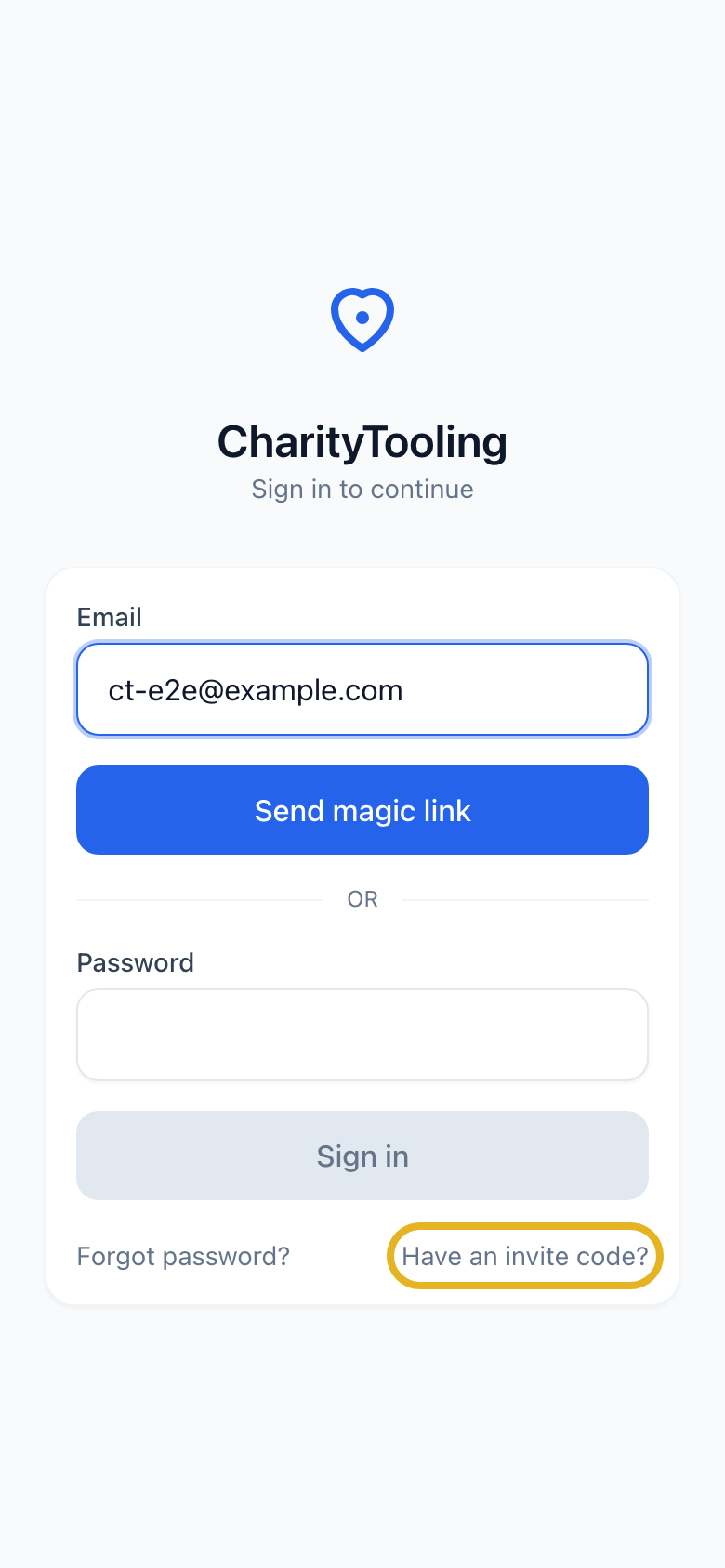
Open charitytooling.com. Click Sign in, then Have an invite code?
Look for this 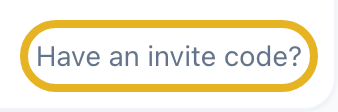
-
2
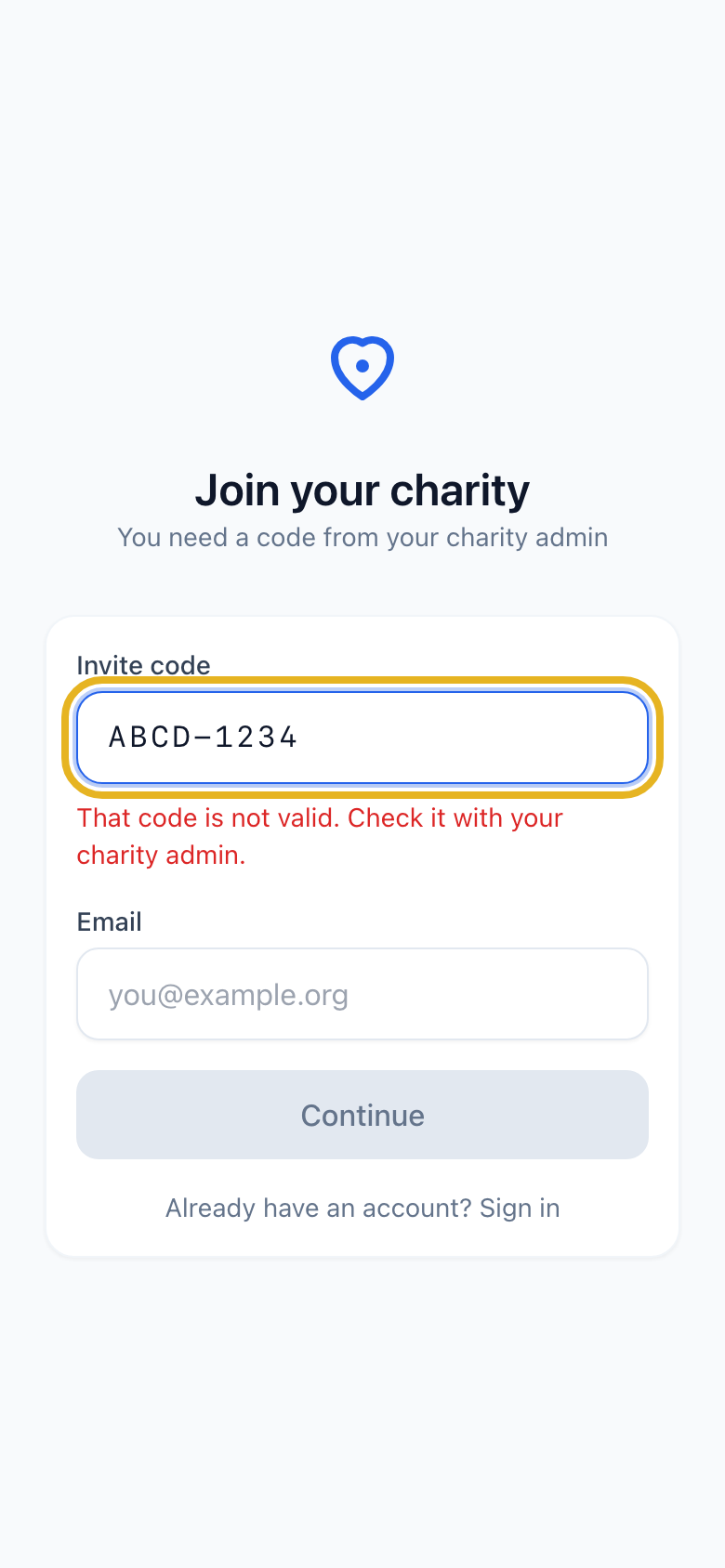
Type the code. Wait for the green line that names your charity. A red line means the code is wrong. Check it with your admin.
Look for this 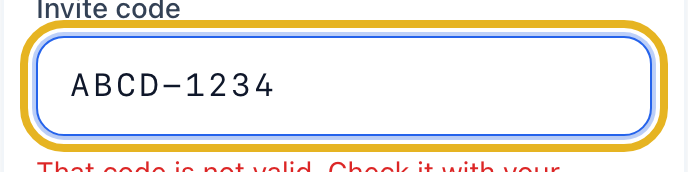
-
3
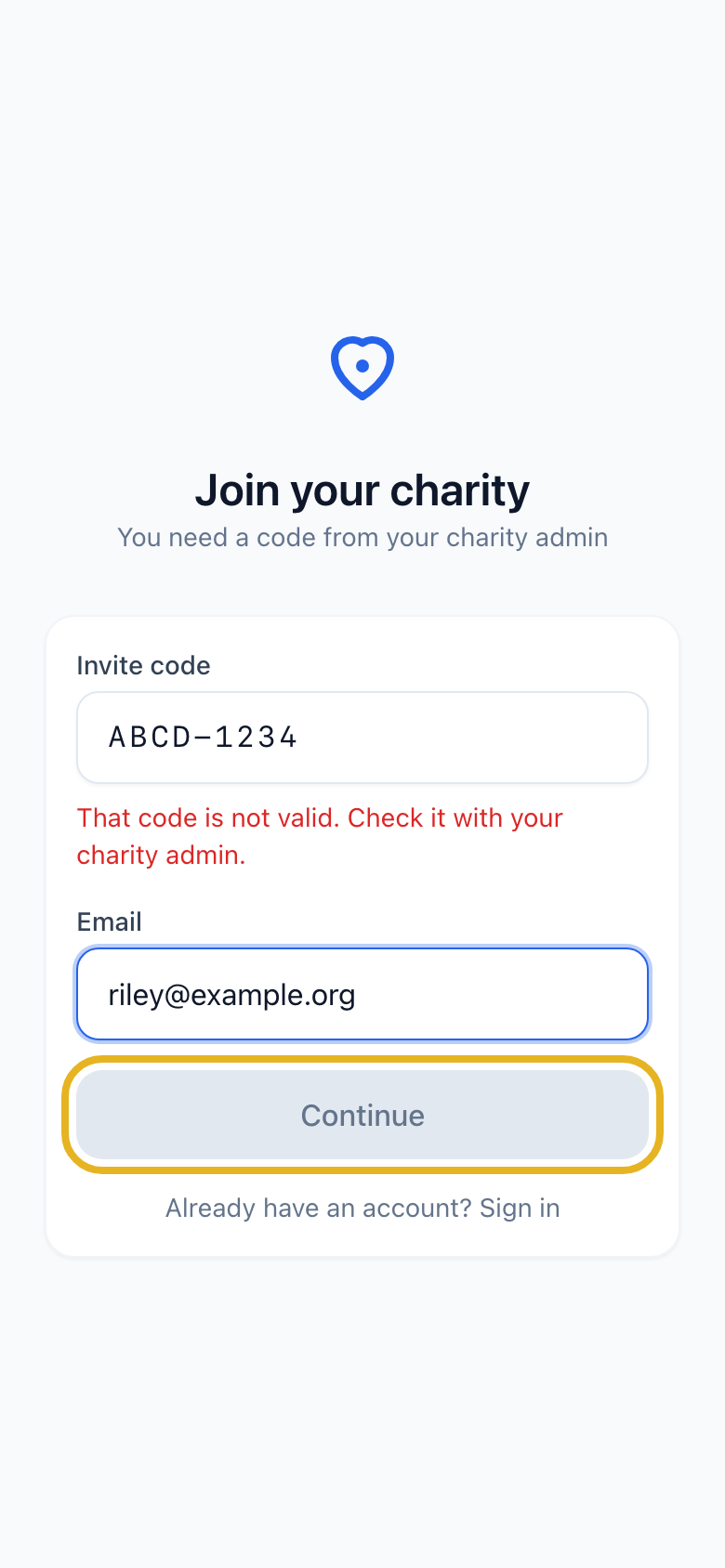
Type your email. Click Continue.
Look for this 
-
4
Open your email. Click the link. Choose a password.
Photo coming
Forgot your password
You can fix this yourself. It takes one email.
-
1
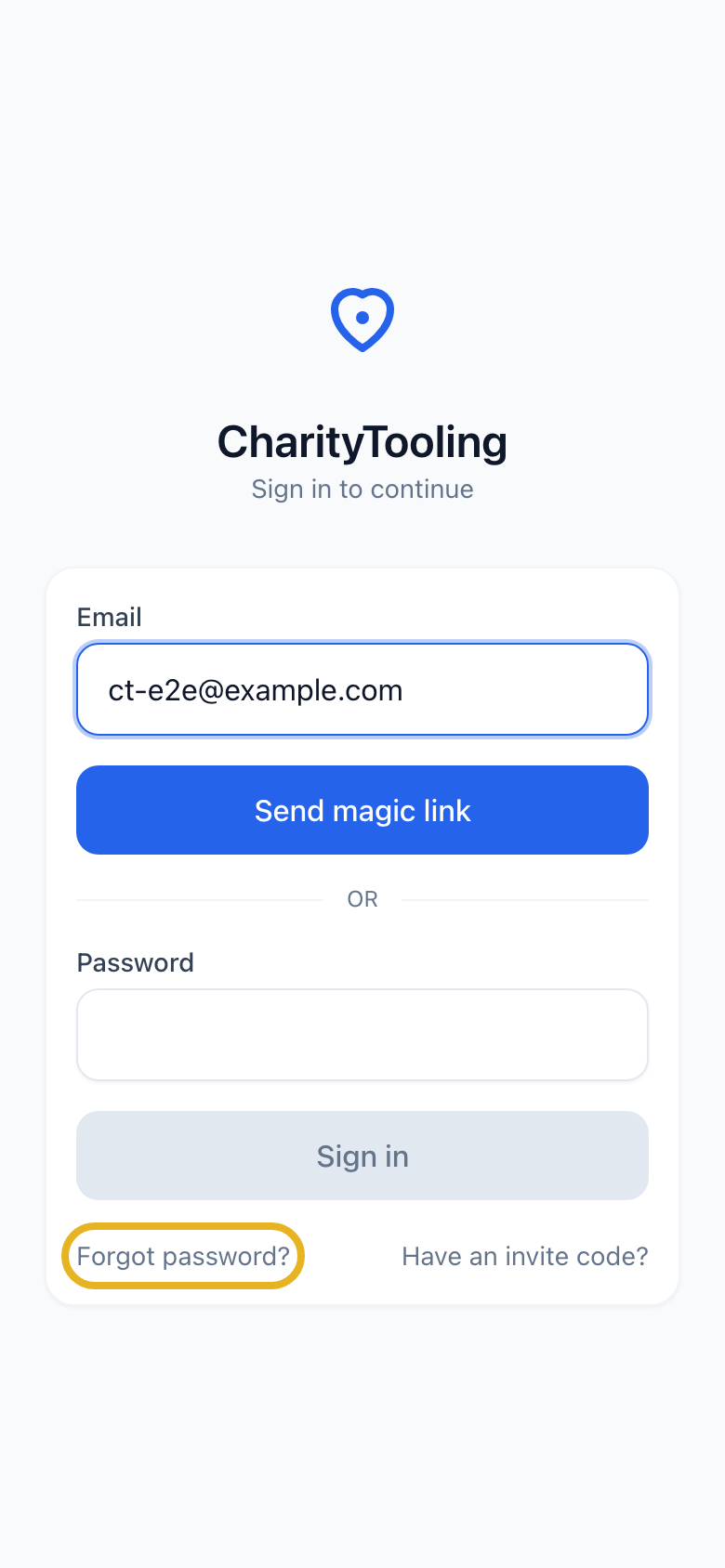
On the sign-in screen, click Forgot password?
Look for this 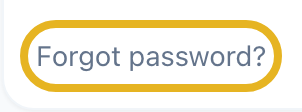
-
2
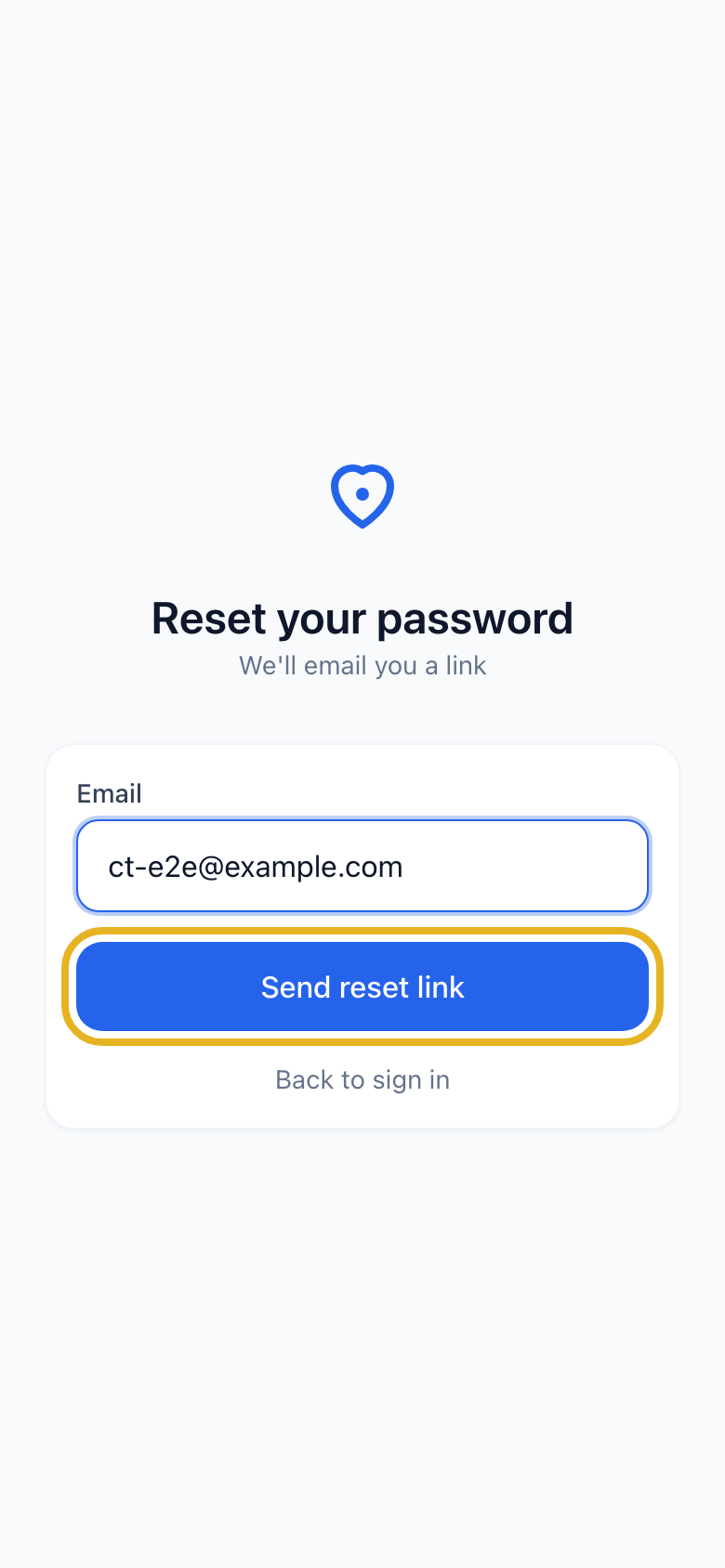
Type your email. Click Send reset link.
Look for this 
-
3
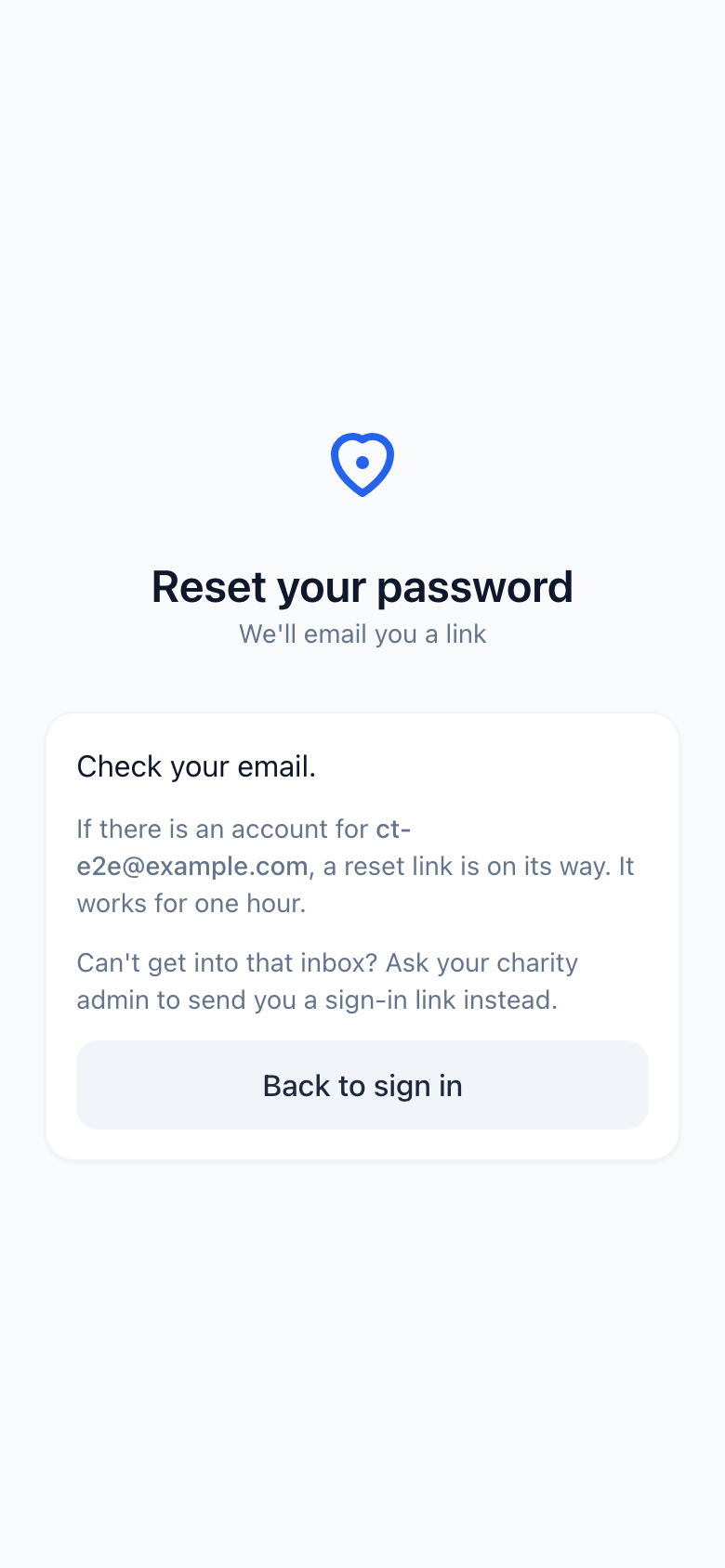
Check your email. The link works for one hour.
-
4
Click the link. Type a new password twice. Click Save password.
Photo coming
Help someone who is locked out
For admins. Use this when a member cannot get into their email.
-
1
Open Admin, then your charity. Find the person under Members. Click their name.
Photos coming for this section.
Photo coming -
2
Click Send sign-in link. Read the link out or text it. It works for one hour.
Photo coming -
3
Or click Temporary password. Tell them the three words. They must pick a new password when they sign in.
Photo coming